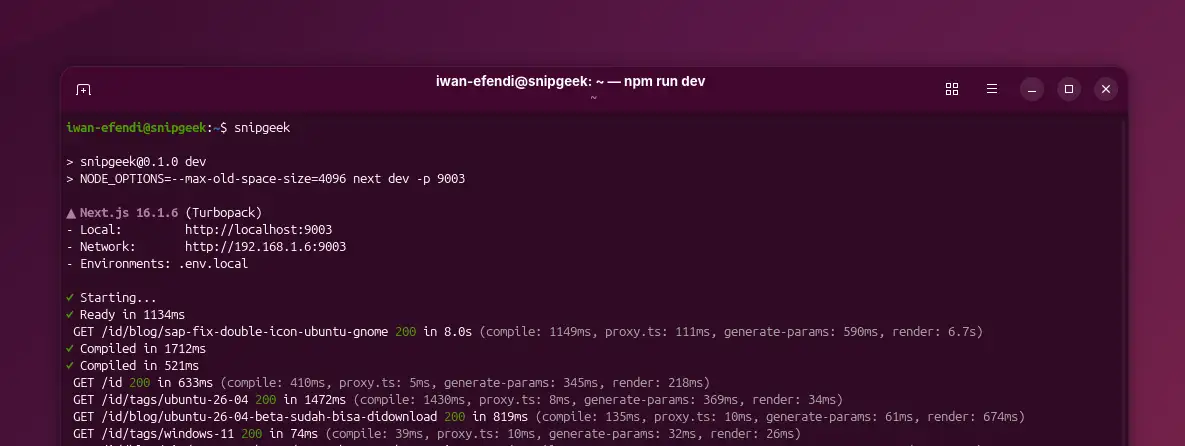
{"slug":"create-bash-alias-linux-terminal","locale":"en","isFallback":false,"translationAvailable":["en","id"],"translationUrls":{"en":"/api/notes/create-bash-alias-linux-terminal?locale=en","id":"/api/notes/create-bash-alias-linux-terminal?locale=id"},"title":"Stop Typing `npm run dev`: Create a Bash Alias in Linux","description":"Learn how to create a simple bash alias in your Linux terminal to save time and avoid typing long commands like npm run dev every single day.","date":"2026-03-31","updated":null,"tags":["linux","tutorial","ubuntu","setup","bash"],"content":"\nOne of the most repetitive things I do every day is opening a terminal, navigating to my project folder (`cd ~/Documents/SnipGeek`), and running `npm run dev`. It gets tiring to type the exact same string constantly.\n\nIn Linux, you can create a bash **alias**—a permanent custom shortcut for any long command. Instead of typing that whole line, I just type `snipgeek` and the local server starts instantly. Here is how you can set it up for your own workflow.\n\n<Steps>\n  <Step>\n  ### Open your `.bashrc` file\n  The `.bashrc` file is a configuration script that Linux runs automatically every time you open a new terminal window. You can edit it directly using `nano`:\n  \n  ```bash\n  nano ~/.bashrc\n  ```\n  </Step>\n\n  <Step>\n  ### Add the alias command\n  Scroll all the way down to the bottom of the file. I usually leave a blank line before adding my custom aliases to keep the file visually structured. Add this exact line:\n  \n  ```bash\n  alias snipgeek=\"cd ~/Documents/SnipGeek && npm run dev\"\n  ```\n  \n  Replace `snipgeek` with whatever shortcut name you prefer, and adjust the folder path to match your actual project repository location.\n  </Step>\n  \n  <Step>\n  ### Save and exit\n  Since we are using `nano`, you need to use keyboard combinations to save your changes:\n  - Press <kbd>Ctrl</kbd> + <kbd>O</kbd> to save.\n  - Press <kbd>Enter</kbd> to confirm the filename.\n  - Press <kbd>Ctrl</kbd> + <kbd>X</kbd> to exit the editor.\n  \n  I used to forget this flow and accidentally close the terminal without saving, so memorizing these shortcuts early is surprisingly helpful.\n  </Step>\n\n  <Step>\n  ### Apply the new configuration\n  By default, the terminal won't recognize your new alias until you close and reopen it. To apply the changes immediately without closing the current window, run:\n  \n  ```bash\n  source ~/.bashrc\n  ```\n  </Step>\n\n  <Step>\n  ### Test your new shortcut\n  Now you are done. From anywhere in your terminal, simply type your alias name:\n  \n  ```bash\n  snipgeek\n  ```\n  \n  ![Alias snipgeek terminal output](/images/_notes/npm-run-shortcut/npm-snipgeek.webp)\n  <div className=\"-mt-3 mb-6 text-center text-sm italic text-muted-foreground\">My terminal quickly jumping to the main project directory and booting up the development server.</div>\n\n  If the directory path is correct, your terminal will instantly jump to the project folder and fire up the development server.\n  </Step>\n</Steps>\n\n<Callout variant=\"info\" title=\"Using Zsh instead of Bash?\">\n  If your system defaults to `zsh` instead of `bash` (you can check by running `echo $SHELL`), the configuration file is different. You need to edit `~/.zshrc` instead of `~/.bashrc`. The rest of the setup is exactly the same.\n</Callout>\n\n## More Alias Ideas\n\nIf you have a habit of navigating to your specific folders manually, you can create a simpler alias just for starting the server:\n\n```bash\nalias dev=\"npm run dev\"\n```\n\nYou are not limited to one alias. I rely heavily on these short forms during busy days to handle quick Git operations or open my code editor seamlessly:\n\n```bash\nalias gs=\"git status\"\nalias gp=\"git push\"\nalias code.=\"code .\"\n```\n\nLittle things like this are what make working in Linux such a joy. You spend two minutes configuring things once, and it smoothly saves you time every single day. Give it a try, and tweak your own terminal space into something that perfectly fits your development habits!\n"}