{"slug":"hide-grub-fix-plymouth-blank-screen-ubuntu","locale":"en","isFallback":false,"translationAvailable":["en","id"],"translationUrls":{"en":"/api/notes/hide-grub-fix-plymouth-blank-screen-ubuntu?locale=en","id":"/api/notes/hide-grub-fix-plymouth-blank-screen-ubuntu?locale=id"},"title":"Hide GRUB and Fix Plymouth Blank Screen on Ubuntu Dual Boot","description":"Hide GRUB menu and fix Plymouth blank screen on Ubuntu dual boot by disabling os-prober and setting GRUB_GFXPAYLOAD_LINUX=keep.","date":"2026-04-28","updated":null,"tags":["ubuntu","dual-boot","troubleshooting","ubuntu-25-10","setup"],"content":"\nI run Ubuntu and Windows 11 on the same laptop with dual boot setup, but I don't rely on GRUB to switch between them. I prefer pressing `F11` during boot to enter the BIOS boot menu and pick the OS from there. It feels more direct and cleaner.\n\nThe problem is GRUB still shows up every time Ubuntu boots. There's a menu with Ubuntu entries, and below it sits **Windows Boot Manager** — anyone using my laptop could boot straight into Windows without needing any password. That made me uncomfortable.\n\nI figured if I never use the GRUB menu anyway, why not hide it completely? Let the boot jump straight from BIOS to Ubuntu's boot animation without that menu pause in the middle.\n\n\n This article was written using Ubuntu 25.10 (Plucky Puffin). The steps apply to Ubuntu 24.04 and above with GRUB 2.\n\n\n## Problem 1: Windows Appears in GRUB Menu\n\nThis happens because Ubuntu runs `os-prober` every time `update-grub` is called. The program scans all disk partitions and automatically adds entries for any other OS it finds — including Windows.\n\nThe solution is to disable `os-prober` through GRUB configuration.\n\nOpen the GRUB configuration file:\n\n```bash\nsudo nano /etc/default/grub\n```\n\nAdd or ensure this line exists:\n\n```ini\nGRUB_DISABLE_OS_PROBER=true\n```\n\n## Problem 2: Unnecessary GRUB Menu\n\nIf you also don't need to see the GRUB menu on every boot, these two lines are what you want:\n\n```ini\nGRUB_TIMEOUT=0\nGRUB_TIMEOUT_STYLE=hidden\n```\n\n`GRUB_TIMEOUT=0` makes GRUB wait zero seconds. `GRUB_TIMEOUT_STYLE=hidden` hides the menu entirely. GRUB still works as your bootloader — it just does its job without displaying anything.\n\n\n You can still access the emergency GRUB menu by holding `Shift` or pressing `Esc` repeatedly during POST. GRUB will appear normally.\n\n\n## Complete Configuration\n\nAfter all adjustments, the top of my `/etc/default/grub` looks like this:\n\n```ini\nGRUB_DEFAULT=0\nGRUB_TIMEOUT_STYLE=hidden\nGRUB_TIMEOUT=0\nGRUB_DISTRIBUTOR=`( . /etc/os-release && echo ${NAME} )` \nGRUB_CMDLINE_LINUX_DEFAULT=\"quiet splash\"\nGRUB_CMDLINE_LINUX=\"\"\nGRUB_DISABLE_OS_PROBER=true\n```\n\nSave the file, then apply the changes:\n\n```bash\nsudo update-grub\n```\n\nReboot — the GRUB menu won't appear anymore, and Windows is gone from the list.\n\n## Problem 3: Plymouth Boot Animation Goes Blank\n\nHere's the bonus issue that surfaced after hiding GRUB. After rebooting, instead of seeing Ubuntu's usual boot animation, the screen just stayed black until GDM appeared.\n\nThe cause: when GRUB is skipped too quickly without setting up graphics mode, Plymouth doesn't get the \"bridge\" it needs to initialize its display. The animation fails to render, leaving only a blank screen.\n\nThe fix is to tell GRUB to lock the graphics mode and keep it active until the kernel takes over.\n\nAdd these two lines to `/etc/default/grub`:\n\n```ini\nGRUB_GFXMODE=1920x1080\nGRUB_GFXPAYLOAD_LINUX=keep\n```\n\n\n \n\n ### Check your screen resolution\n\n Adjust the `GRUB_GFXMODE` value to match your laptop or monitor's native resolution. To find it:\n\n ```bash\n xrandr | grep '*'\n ```\n\n Or check in **Settings → Displays**.\n\n \n \n\n ### Edit GRUB configuration\n\n ```bash\n sudo nano /etc/default/grub\n ```\n\n Add both lines anywhere in the file:\n\n ```ini\n GRUB_GFXMODE=1920x1080\n GRUB_GFXPAYLOAD_LINUX=keep\n ```\n\n \n \n\n ### Apply changes\n\n ```bash\n sudo update-grub\n ```\n\n Reboot and the Plymouth animation should appear normally.\n\n \n\n\n`GRUB_GFXPAYLOAD_LINUX=keep` is the key — this option asks GRUB to *maintain* the graphics mode already set, instead of dropping it before the Linux kernel starts. Plymouth needs a ready graphics state, and this line ensures that.\n\n## Final Configuration\n\n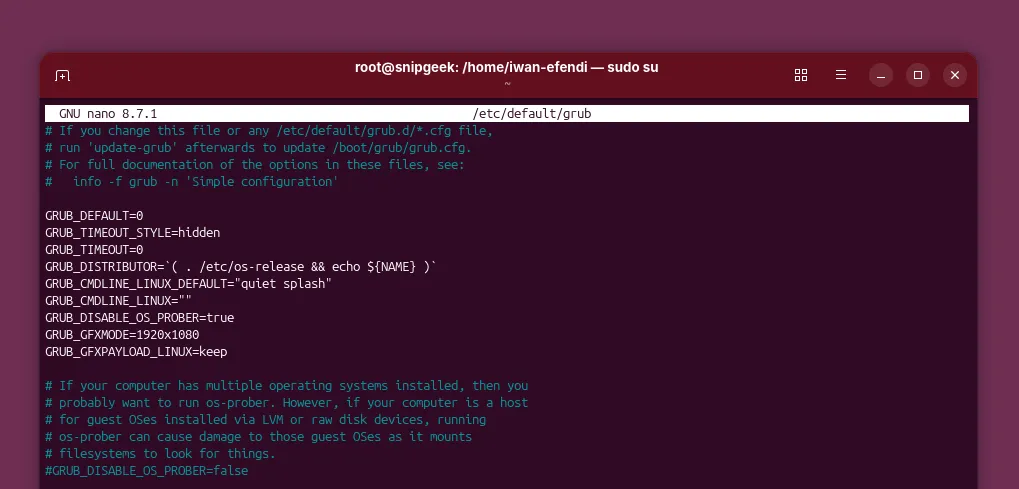\n\nThe final GRUB configuration with all settings applied.
\n\nHere's my complete `/etc/default/grub` with all adjustments:\n\n```ini\nGRUB_DEFAULT=0\nGRUB_TIMEOUT_STYLE=hidden\nGRUB_TIMEOUT=0\nGRUB_DISTRIBUTOR=`( . /etc/os-release && echo ${NAME} )` \nGRUB_CMDLINE_LINUX_DEFAULT=\"quiet splash\"\nGRUB_CMDLINE_LINUX=\"\"\nGRUB_DISABLE_OS_PROBER=true\nGRUB_GFXMODE=1920x1080\nGRUB_GFXPAYLOAD_LINUX=keep\n```\n\nAfter `sudo update-grub` and a reboot: no GRUB menu, no Windows entry, and Ubuntu's boot animation appears smoothly as it should.\n\nIf you have a similar dual-boot setup and are used to selecting OS directly from BIOS, this configuration feels much cleaner. Boot feels faster too since there's no menu pause in the middle.\n\nDid you get different results with your setup? Let me know in the comments — there might be hardware variations or Ubuntu versions that need different adjustments.\n\n### References\n1. [GRUB Configuration Documentation — GNU](https://www.gnu.org/software/grub/manual/grub/html_node/Simple-configuration.html)\n2. [Plymouth Configuration — Ubuntu Wiki](https://wiki.ubuntu.com/Plymouth)\n"}