# Clean Install Windows 11: A Step-by-Step Complete Guide
Canonical: https://snipgeek.com/blog/clean-install-windows-11-step-by-step-guide
Locale: en
Description: Step-by-step guide to clean install Windows 11 from a bootable USB drive, with screenshots covering BIOS settings, disk partitioning, and post-install setup.
Date: 2026-03-09
Updated:
Category: OS Installation
Tags: windows, windows-11, tutorial, clean-install
JSON: https://snipgeek.com/api/posts/clean-install-windows-11-step-by-step-guide?locale=en
---
Ready for a fresh start with Windows 11? Great choice! A clean install is the best way to get a super-fast system free from bloatware. The process might look a bit intimidating, but don't worry—with this guide, we'll walk through it step-by-step, complete with screenshots for every part.
## #1 Key Preparation (Don't Skip!)
Before we begin, let's get everything ready. This is the most important part to ensure a smooth process.
This is the most crucial step. A clean install will **delete everything** on your primary drive (usually Drive C:). Please, please back up all your documents, photos, and important files to an external hard drive or cloud service before you start.
1. **Prepare a Windows 11 Bootable USB:** This will be our installation tool. If you haven't made one yet, follow our simple guide here.
- **Read more:** [Complete Guide: How to Create Windows 11 Bootable USB with Rufus](/blog/how-to-create-windows-11-bootable-usb-rufus)
2. **Internet Connection (Recommended):** It's best to have an internet connection ready. This helps Windows grab important updates and drivers automatically during setup.
3. **Note Down Your Product Key (To Be Safe):** If your previous Windows was genuine and linked to a Microsoft account, your key is likely digital and will activate automatically. However, if you have a separate retail key, it's good to write it down.
## #2 Installation Process, Step by Step
Everything ready? Let's start the installation.
### 1. Booting from the USB Drive
- Plug your bootable USB into your laptop or PC.
- Restart your computer and get ready to enter the BIOS/UEFI menu. The key to press varies, but it's usually one of these: F2, DEL, F10, or F12. Press it repeatedly as soon as your computer starts up.
- **Example on My MSI Laptop:** I press the DEL key right when the MSI logo appears.
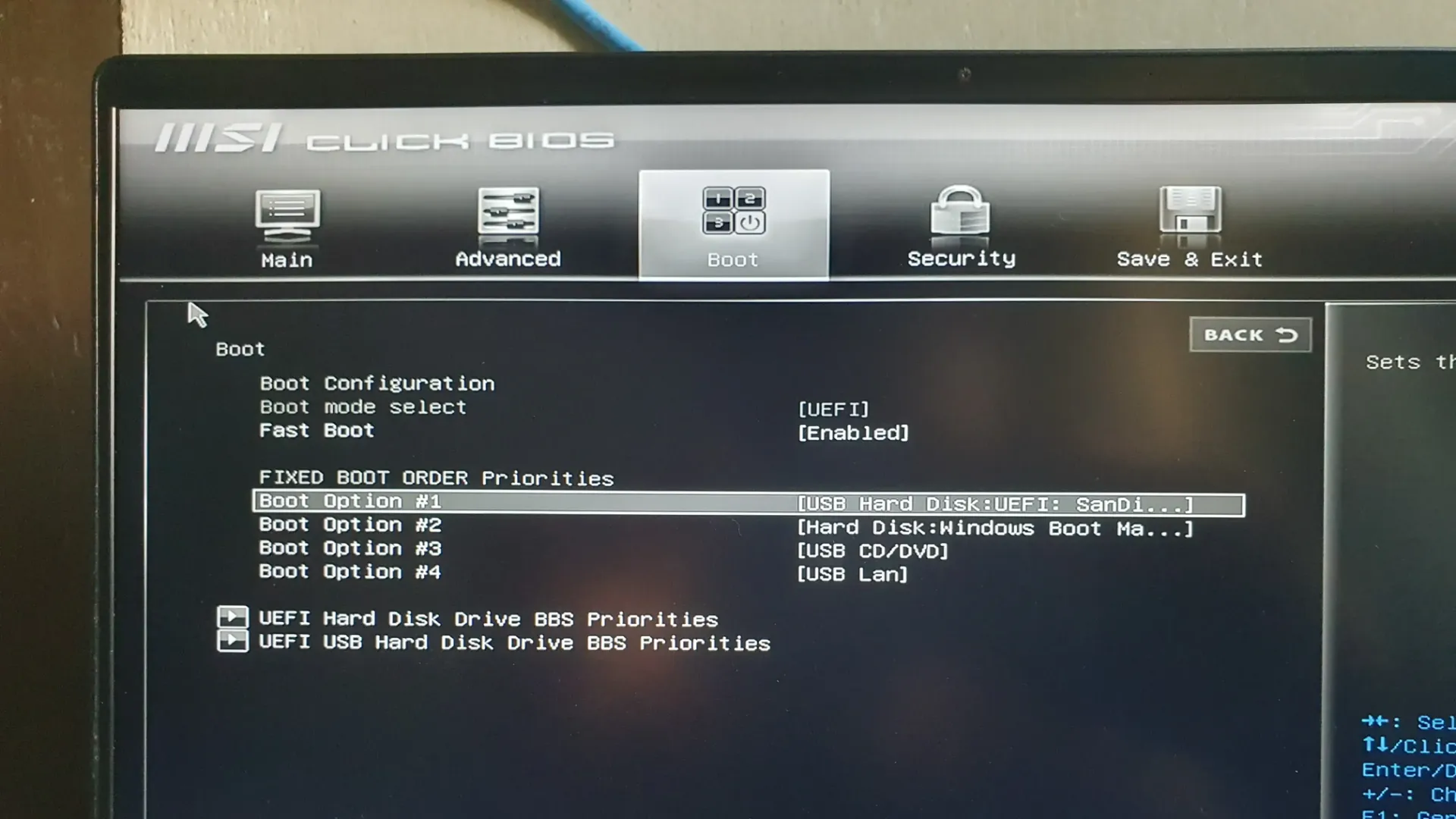
*BIOS screens can vary, but the principle is the same: find the Boot menu.*
- Once in BIOS, look for the **"Boot"** or **"Boot Priority"** menu. Set your USB Flash Drive as the number one boot option (`Boot Option #1`).
- Save your changes and exit (usually by pressing F10). Your computer will restart and boot from the USB.
### 2. Starting Windows Setup
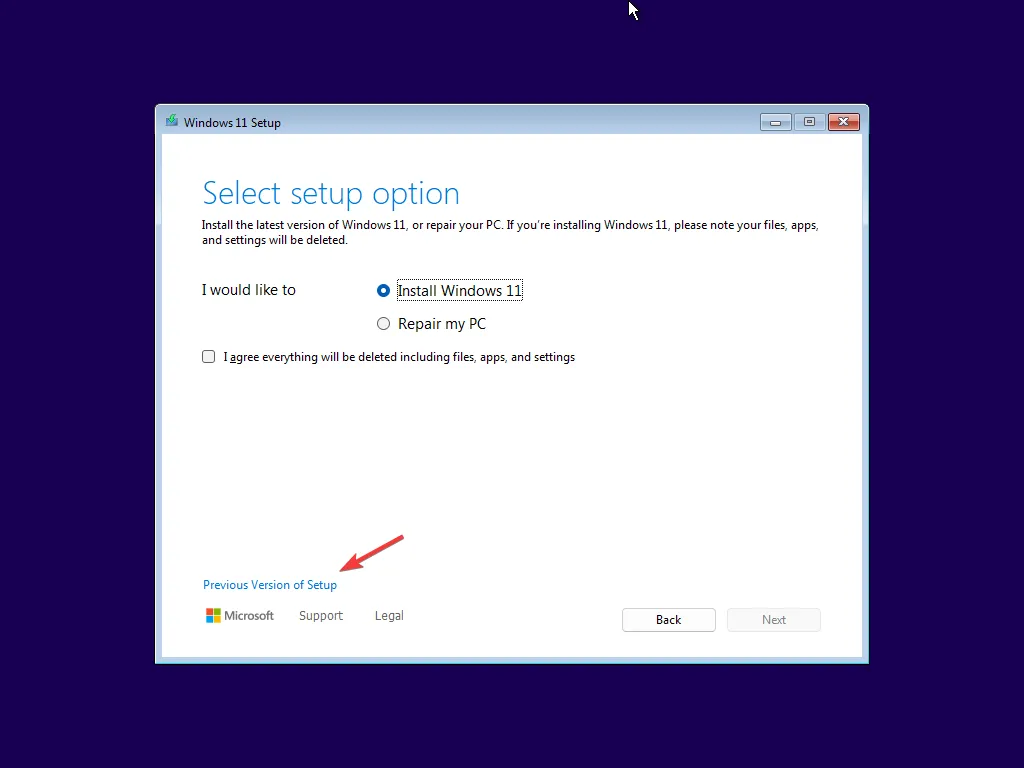
**Select "Previous Version of Setup"**
The Windows setup screen will appear. Don't click 'Next' yet. Instead, look for the link at the bottom left that says **"Previous Version of Setup"** and click it. This is a small trick to start the standard, more familiar installation flow.
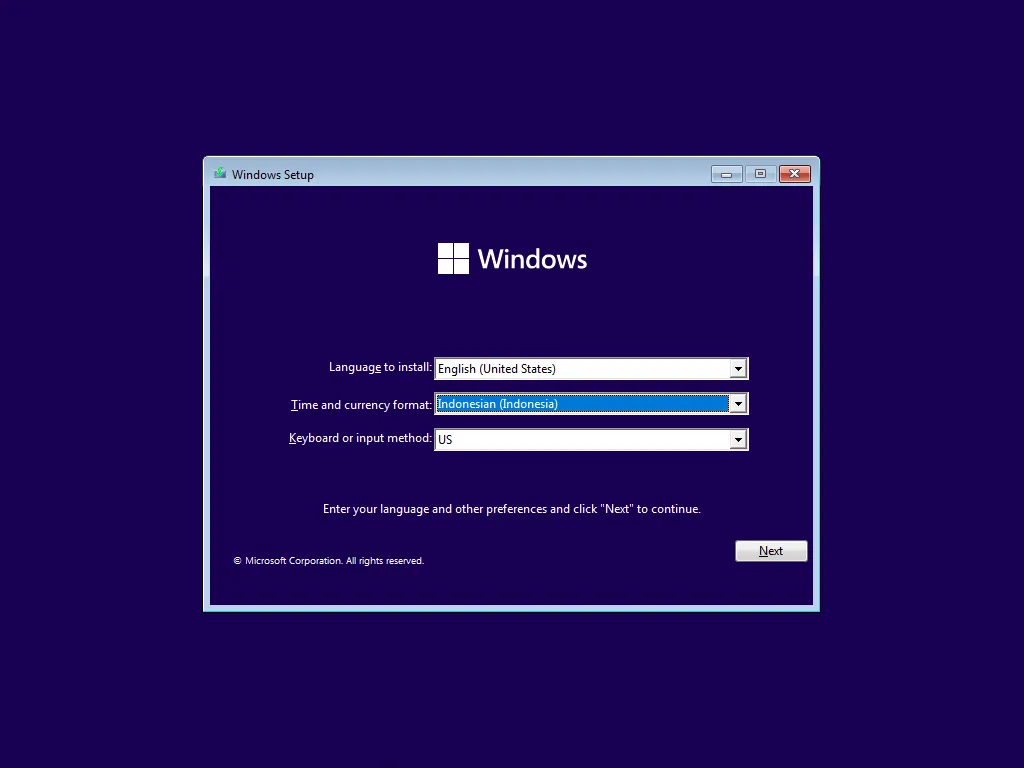
**Configure Language and Regional Settings**
The next screen will ask for your language, time format, and keyboard. Click **Next**.
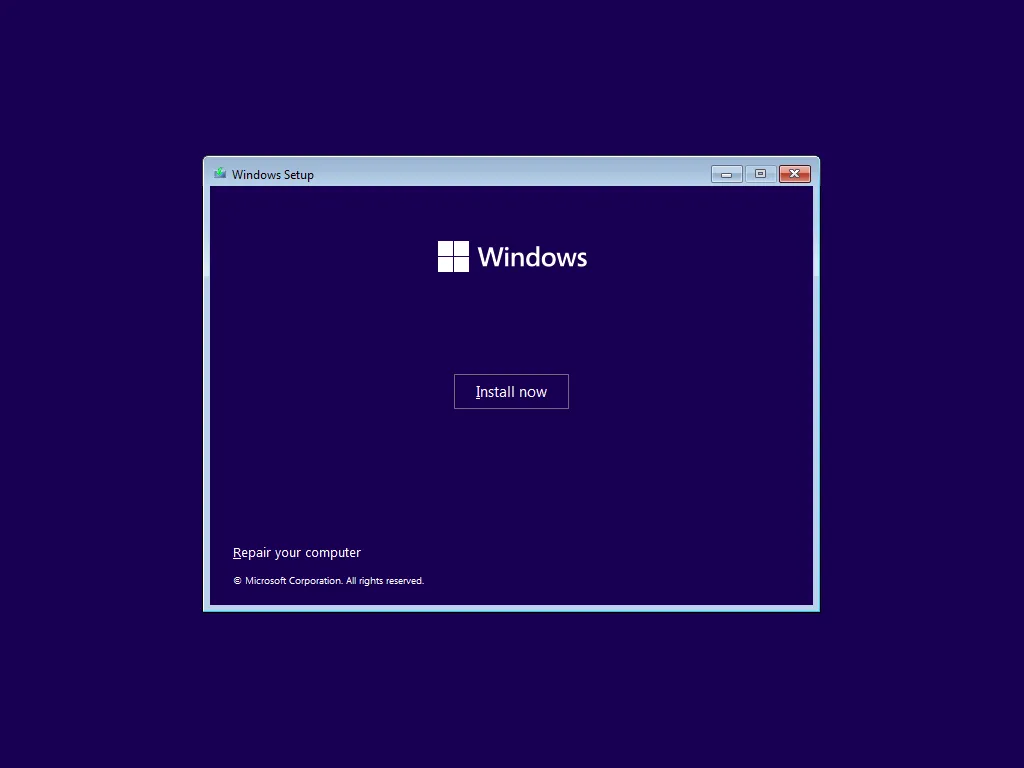
**Start Installation**
Click the large **"Install now"** button to begin the process.
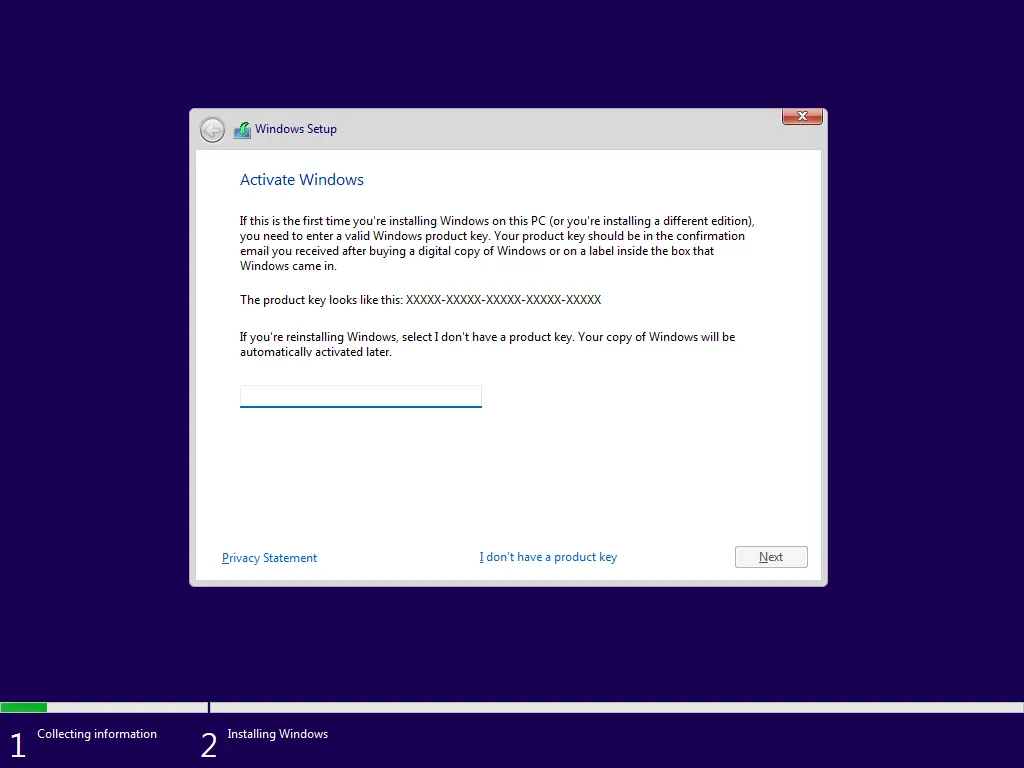
**Activate Windows**
Setup will ask for a product key. If your license is linked to your Microsoft account, just click **"I don't have a product key"**.
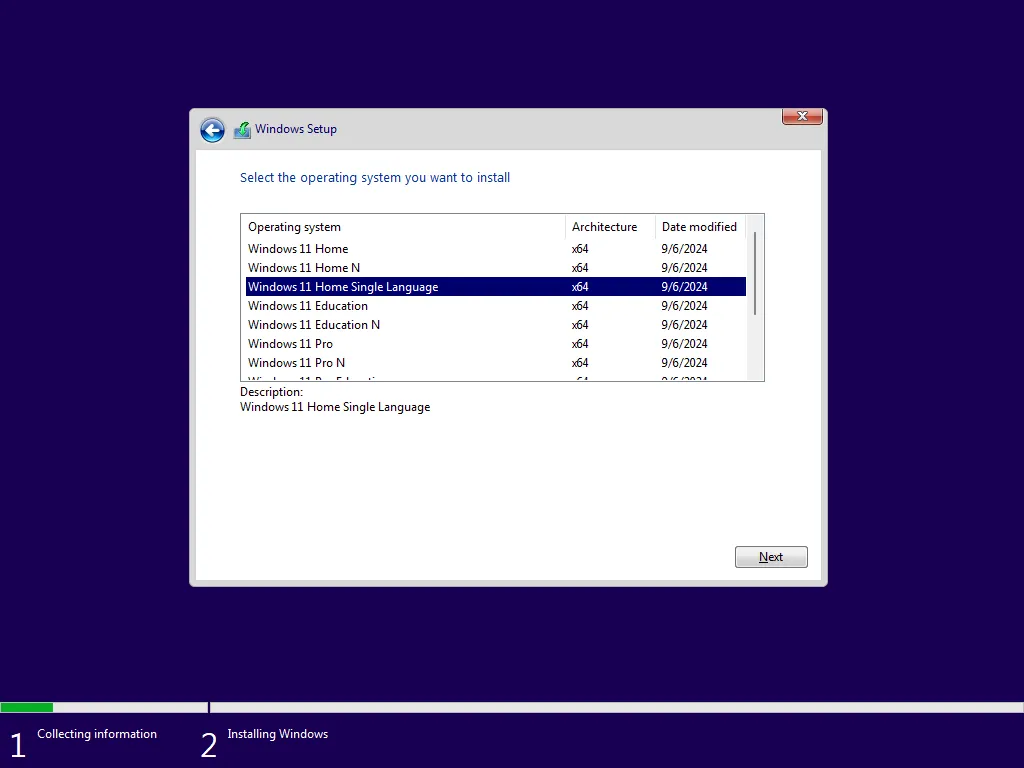
**Choose Windows 11 Edition**
Select the edition that matches your license (e.g., Windows 11 Pro). Click **Next**.
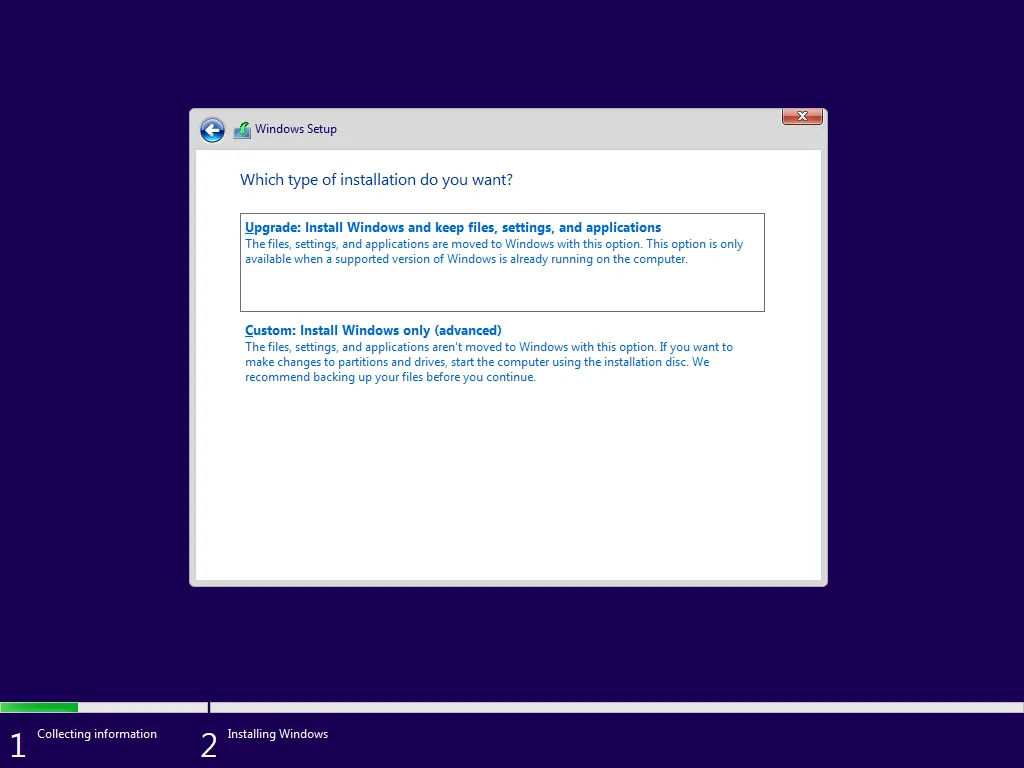
**Choose Installation Type**
Always select **"Custom: Install Windows only (advanced)"** for a truly clean installation.
**Managing Partitions (Critical!)**
Find the partition where your old Windows is located. Select each related partition (System, MSR, Recovery, Primary) **one by one**, then click **Delete**.
This step will delete all data on the selected partitions. Make sure you have backed up your important files.
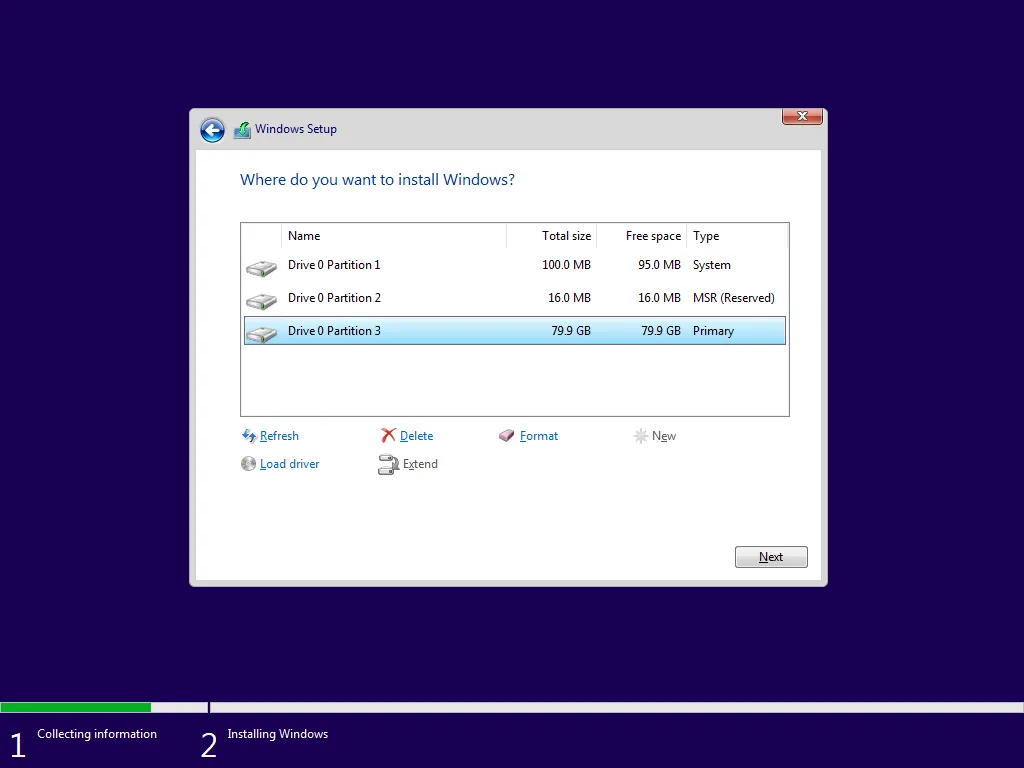
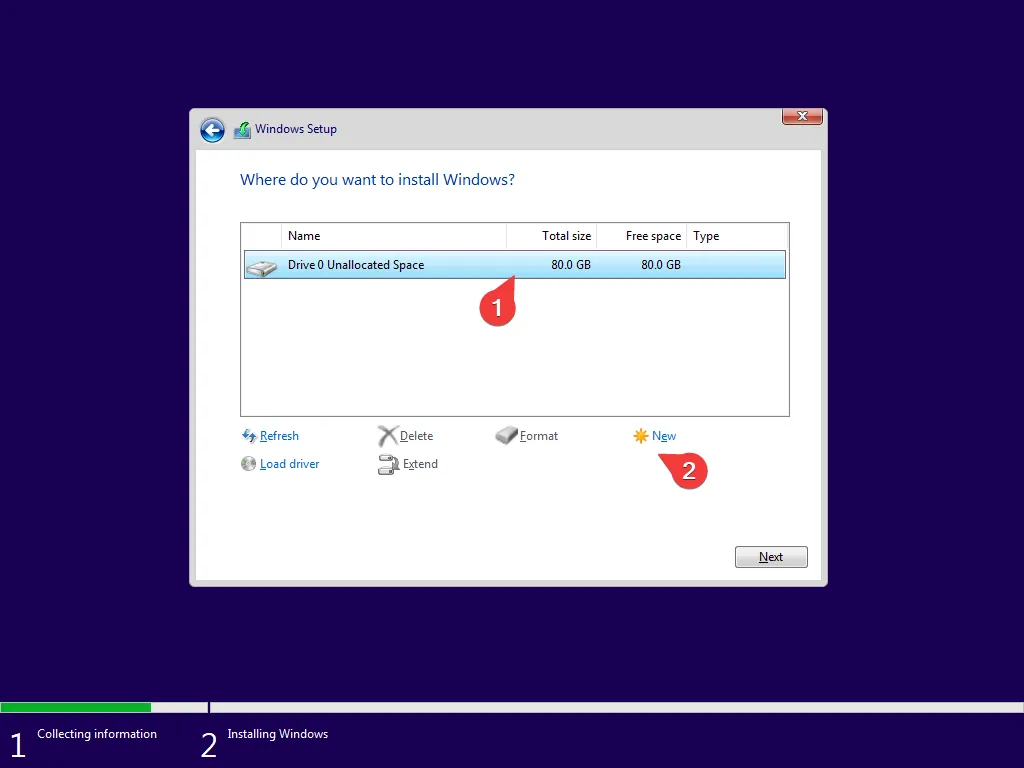
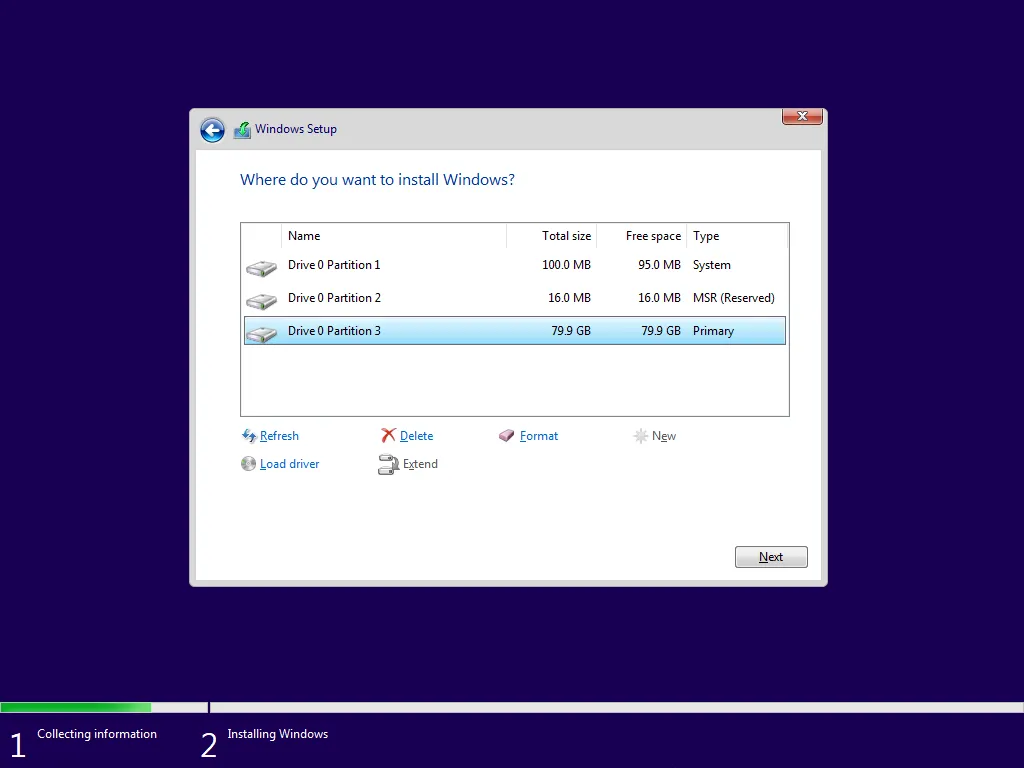
Once you have only one block of **"Unallocated Space"**, select it and click **Next**.
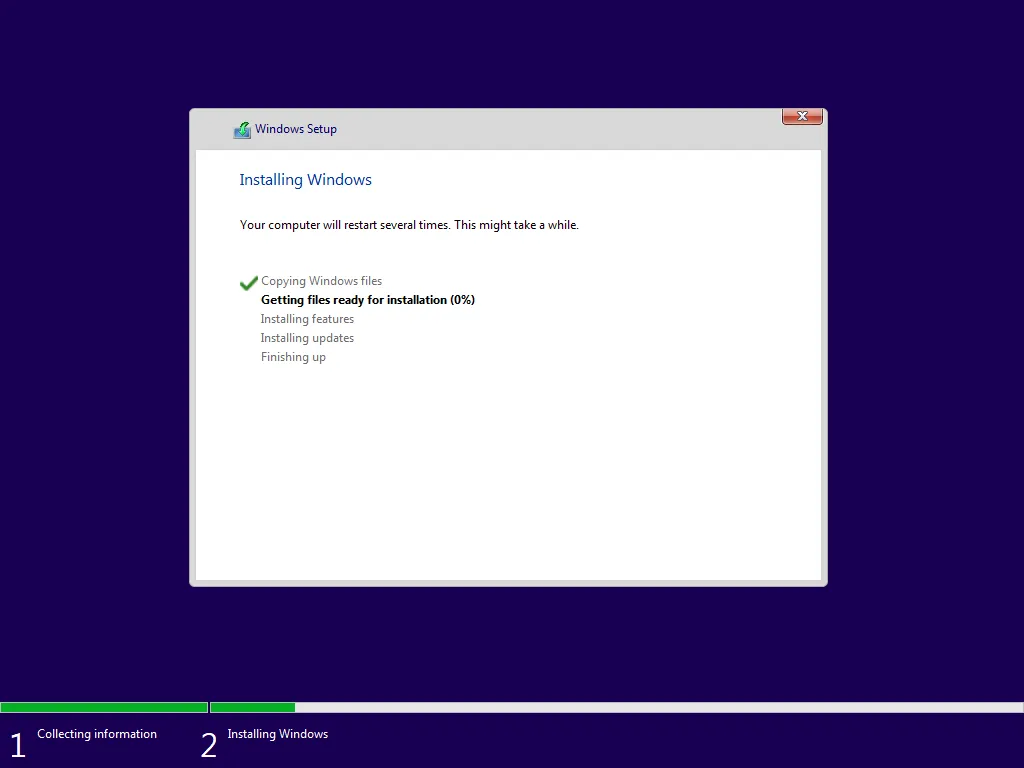
**Installation Progress**
Windows will start copying files. The computer will restart several times. Just let it do its thing.
## #3 First-Time Setup (OOBE)
After the core installation is complete, you'll go through a series of setup screens called OOBE (Out of Box Experience).
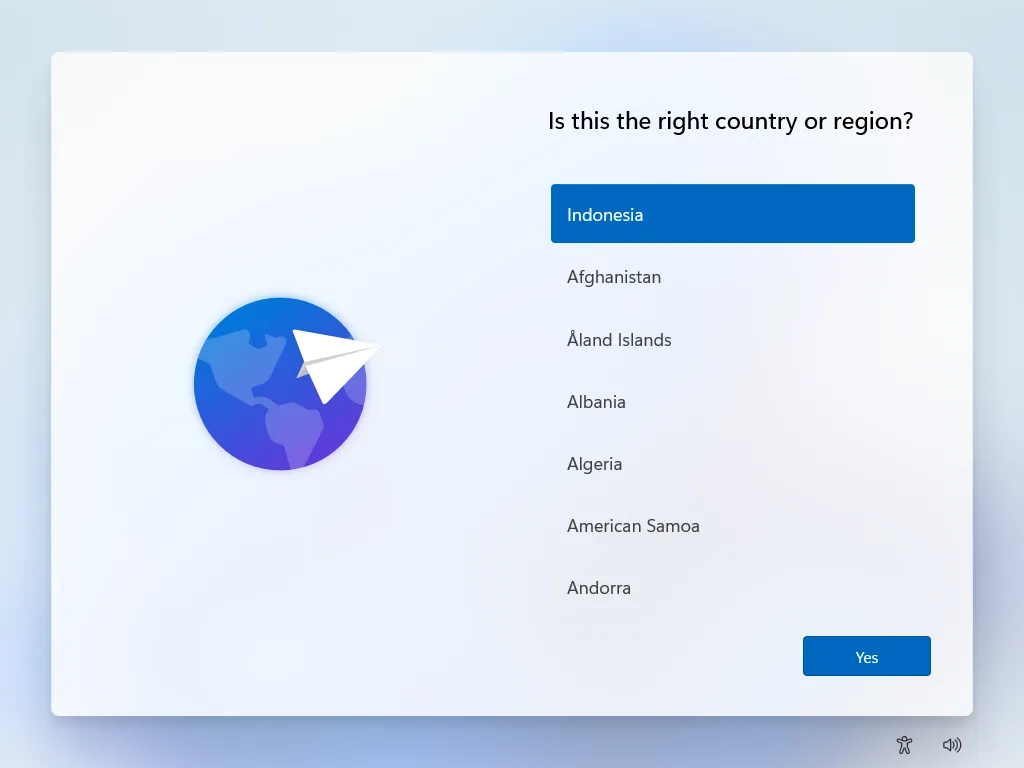
**Region and Keyboard**
Follow the prompts to select your country, keyboard layout, and connect to Wi-Fi.
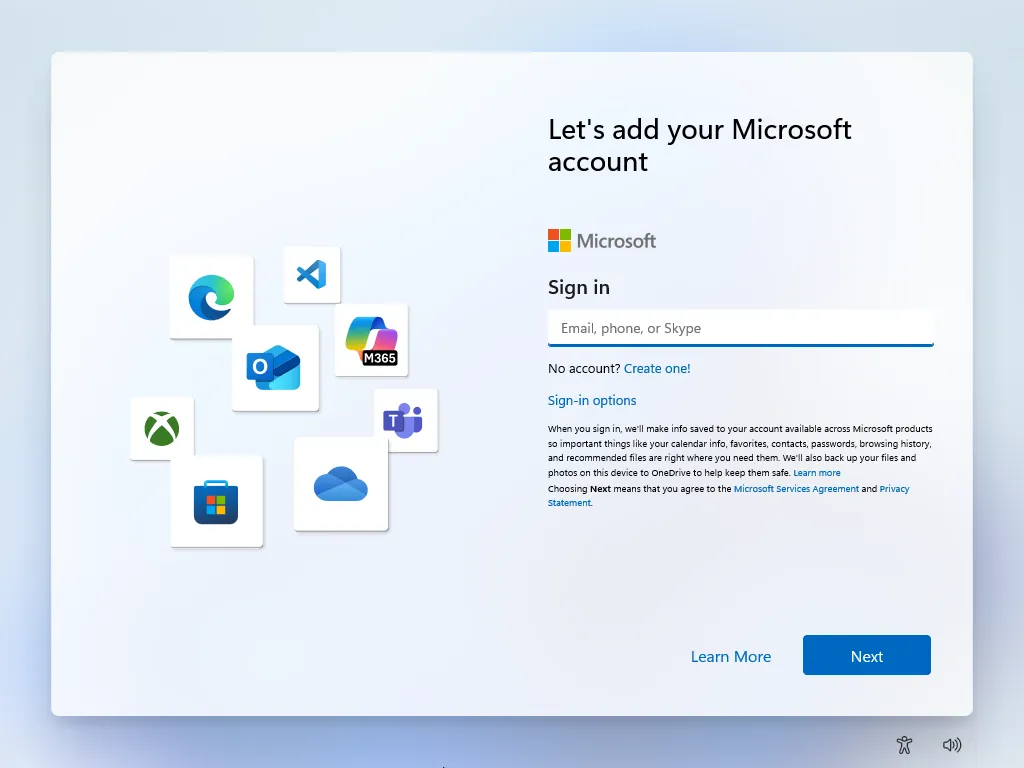
**Sign in with Microsoft Account**
I highly recommend signing in with your Microsoft account. It syncs your settings and automatically activates your Windows digital license.
**Final Personalization**
You'll be asked to create a PIN, set privacy settings, and choose your interests for customization.
Once you're through all that, you'll finally land on your clean, fresh Windows 11 desktop!