# How to Connect Your Laptop to an External Monitor on Windows 11 & Ubuntu
Canonical: https://snipgeek.com/blog/how-to-connect-laptop-external-monitor
Locale: en
Description: Connect your laptop to an external monitor on Windows 11 and Ubuntu to instantly double your workspace and fix common detection errors.
Date: 2026-04-28
Updated:
Category: Hardware
Tags: hardware, windows-11, ubuntu, tutorial, setup
JSON: https://snipgeek.com/api/posts/how-to-connect-laptop-external-monitor?locale=en
---
Staring at a cramped 14-inch screen while a beautiful 27-inch monitor gathered dust on my desk felt like a huge waste of potential. I finally decided to hook them up to double my workspace, but since I dual-boot Windows 11 and Ubuntu, getting the display to run perfectly on both operating systems required a bit of tweaking.
It surprisingly took me a few confusing minutes to realize why my external screen remained black on Linux despite working flawlessly on Windows. If you are stuck staring at a "No Signal" message, this guide will help you configure your dual-monitor setup correctly across both platforms.
## Identify Your Ports
Before you grab any random cable, you need to check exactly what display ports are available on your laptop. I initially tried forcing a cheap adapter, only to discover my laptop's USB-C port did not actually support video output.
Most modern laptops use one of these common connections:
- **HDMI**: The most universal standard that carries both high-quality video and audio simultaneously.
- **DisplayPort (DP)**: Often found on gaming or workstation laptops, offering higher refresh rates.
- **USB-C / Thunderbolt**: Extremely versatile, but you must ensure it specifically supports DisplayPort Alt Mode to output video.
If your laptop only has USB-C but your monitor uses HDMI, you will need an active converter cable.
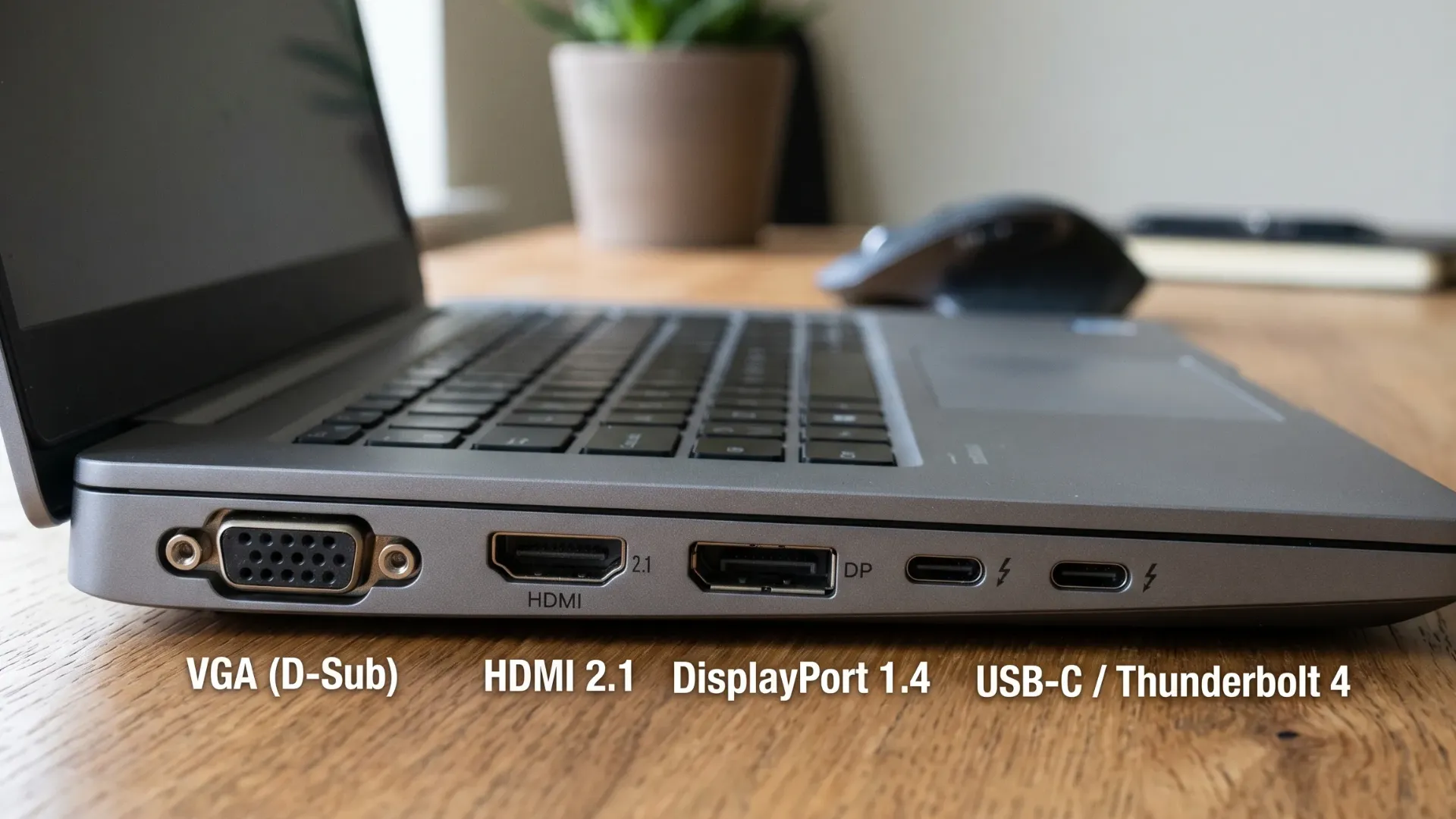
Always check if your laptop ports support direct video output before buying cables.
## Making the Physical Connection
The physical setup is identical regardless of which operating system you boot into first.
### Plug in the display cable
Securely connect the HDMI or DisplayPort cable from your laptop directly into the back of your external monitor.
### Select the correct input source
Turn on the monitor and use its physical buttons to select the correct input channel, such as HDMI 1 or DisplayPort.
### Wake up your laptop
Turn on your laptop or wake it from sleep mode. In most ideal scenarios, the monitor will immediately mirror your laptop screen.
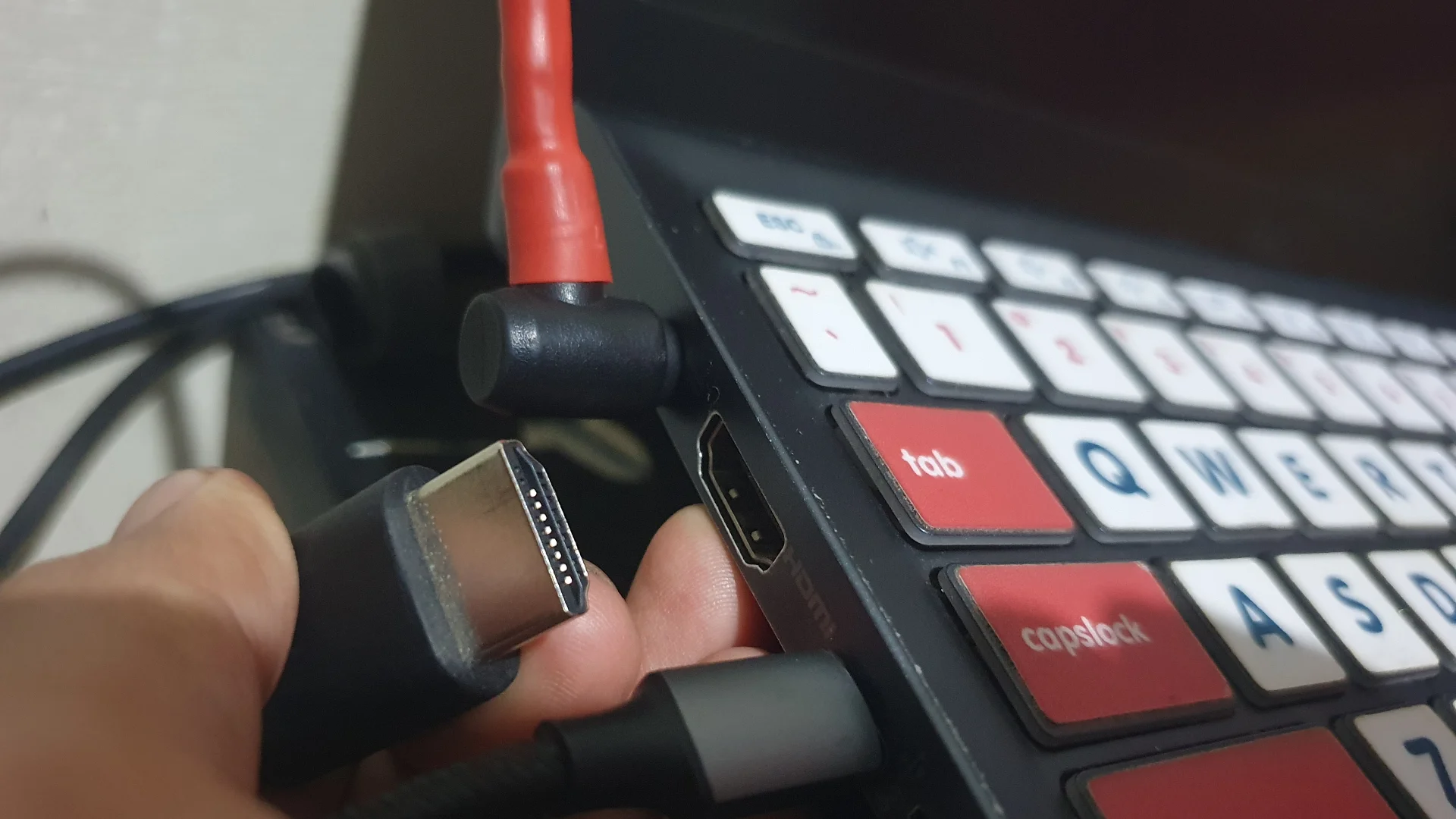
Ensure the cable is pushed firmly into the port until you feel a soft click.
If your screen remains entirely blank after plugging it in, we need to adjust the software settings.
## Configuring Windows 11
Windows 11 usually handles external displays seamlessly, automatically expanding your desktop space right away.
You can quickly change how the screen behaves by pressing Windows + P. This opens the projection menu where you should select **Extend** to use both screens independently.
If the mouse movement between the screens feels disconnected or misaligned, you need to fix the physical arrangement.
### Open display settings
Right-click anywhere on your empty desktop and select **Display settings** from the context menu.
### Rearrange the screens
Drag and drop the numbered rectangles to match exactly how your monitors sit on your physical desk. Click the **Identify** button if you are unsure which number belongs to which screen.
### Adjust refresh rate and resolution
Scroll down to ensure the resolution matches your monitor's native spec, such as 2560×1440. If you have a high refresh rate monitor, do not forget to enable 144Hz in the advanced display settings.
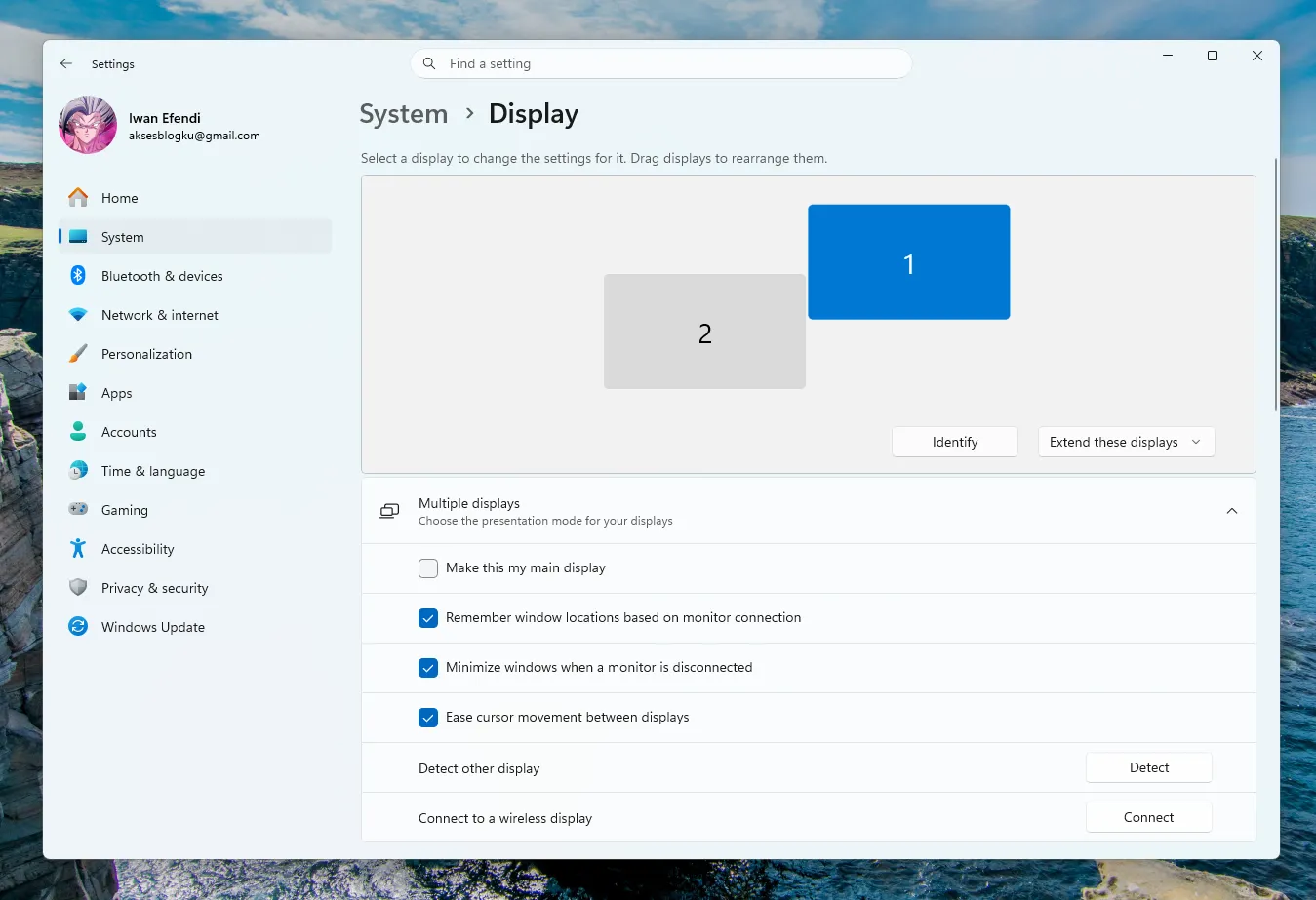
Dragging the display boxes in Windows 11 aligns your mouse cursor transitions.
## Configuring Ubuntu
Ubuntu with the GNOME desktop environment is generally quite smart about detecting external monitors, but it sometimes defaults to mirroring your screen instead of extending it.
I actually panicked slightly when my monitor first lit up on Ubuntu because the scaling looked completely broken. Fixing it only took a quick trip to the settings.
### Access the displays menu
Open your main system **Settings** and navigate to the **Displays** tab on the left sidebar.
### Choose join displays mode
At the top of the window, select **Join Displays** to expand your workspace across both monitors rather than copying the same image.
### Set primary display and refresh rate
Click on your larger monitor's rectangle, adjust its resolution, and toggle the **Primary Display** switch if you want your main dock and top bar to live there.
### Apply changes
Click the **Apply** button at the top right. Ubuntu gives you a 10-second window to confirm the new layout before reverting to the old settings.
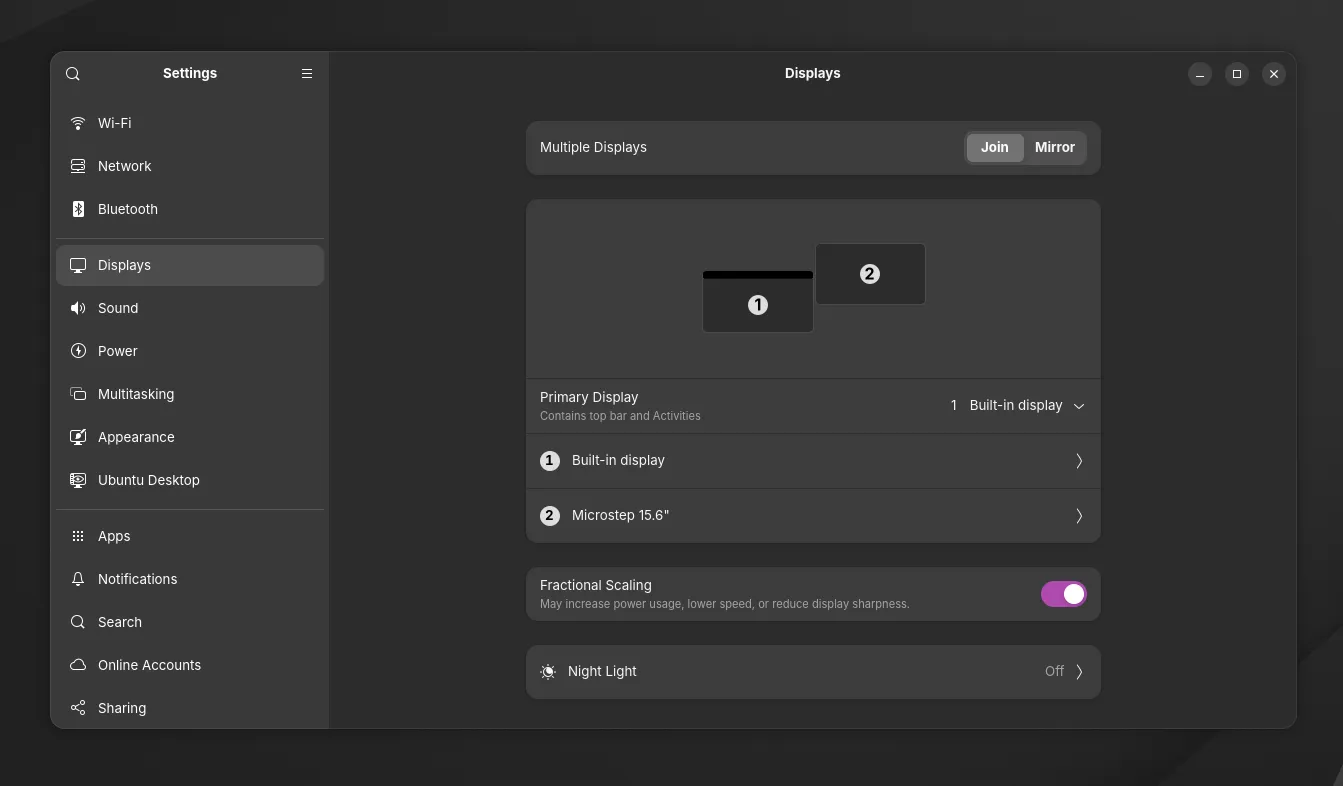
Ubuntu settings allow you to easily define which monitor holds your main application dock.
## Troubleshooting Common Detection Errors
Sometimes, the monitor simply refuses to wake up. This happens more frequently on Linux, especially if you are using a dedicated graphics card.
### On Windows 11
If Windows fails to detect the monitor, open your Display settings and manually click the **Detect** button located under the multiple displays section.
If nothing happens, you should open the Device Manager and check if your display adapters need a driver update. A loose cable is also a surprisingly common culprit, so try reseating both ends firmly.
### On Ubuntu
Linux detection issues are almost always tied to proprietary graphics drivers, particularly with NVIDIA hardware.
You can force a manual detection by opening your terminal and typing:
```bash
xrandr --auto
```
If that fails and you use an NVIDIA GPU, you probably need to install the correct proprietary drivers. Run `ubuntu-drivers devices` in the terminal to see what is available, then install the recommended package. A quick system restart usually brings the external monitor to life.
## Wrapping Up
Adding an external monitor is one of the easiest ways to boost your daily productivity without upgrading your entire machine. While Windows 11 usually handles the transition flawlessly, Ubuntu might require a gentle nudge with driver updates to get everything running smoothly.
Once your screens are properly aligned, I highly recommend exploring window management tools like PowerToys FancyZones on Windows or the Pop Shell extension on GNOME to keep your newly expanded workspace organized.
Have you run into any weird display glitches that were not covered here? Let me know how you fixed them in the comments below!