# How to Split Large Files into Multiple Parts with WinRAR
Canonical: https://snipgeek.com/blog/how-to-split-rar-files-into-multiple-parts
Locale: en
Description: A practical step-by-step guide to splitting large files into smaller RAR parts with WinRAR, including ideal size settings and extraction tips.
Date: 2026-03-17
Updated: 2026-03-19
Category: Apps
Tags: windows, winrar, archive, tutorial
JSON: https://snipgeek.com/api/posts/how-to-split-rar-files-into-multiple-parts?locale=en
---
As a blogger who occasionally shares large game files or software packages, I often get the same request: "Can you split this into parts so it is easier to download?"
And honestly, that request makes total sense.
When a file is divided into smaller chunks, users can download part by part with less risk of a failed full download. It is also more practical in many everyday situations.
For example:
- Sending files through email services with attachment limits.
- Saving large files across multiple flash drives or older storage media.
The good news is that **WinRAR** has this feature built in, and the process is very straightforward.
## Quick Size Guide (Before You Start)
Choosing the right part size will save a lot of trouble for both uploader and downloader.
| Use Case | Recommended Part Size | Why |
|---|---:|---|
| Email attachment workflow | `20M` to `24M` | Stays under common 25 MB limits after metadata overhead. |
| Messaging apps / quick sharing | `50M` to `100M` | Easier to retry if one upload fails. |
| Cloud drive with unstable internet | `100M` to `250M` | Good balance between speed and retry cost. |
| Flash drive transfer (older devices) | `500M` | Safer for mixed storage quality and copy interruptions. |
| Archival backups on local disk | `1000M` or more | Fewer parts to manage when network reliability is not a concern. |
If you are unsure, start with **`100M`**. It is usually the safest practical default.
## #1 Install WinRAR First
If WinRAR is not installed yet, download it first. It is also one of the [essential utilities we recommend after a Windows 11 installation](/blog/to-do-after-install-windows11).
Use these download references from your publishing workflow:
For the latest official release source, you can also check [Official WinRAR Download](https://www.win-rar.com/download.html?&L=0).
WinRAR can be used for free. You may see a purchase reminder for the Pro license, but core features remain usable without a hard time limit.
Installation is the same as any normal `.exe` app: run installer, follow prompts, done.
## #2 Split a File into Multiple RAR Parts
After WinRAR is installed, follow these steps.
**Prepare your target file or folder**
Decide which file or folder you want to split into multiple parts.
**Open the WinRAR archive dialog**
Right-click the file/folder and choose **Add to archive...**.
**Configure split-volume settings**
In the settings window, focus on these fields:
- **Archive name:** Change the output file name if needed.
- **Archive options:** Enable **Create solid archive** and **Add recovery record** for better integrity.
- **Split to volumes, size (most important):** Set the size for each part. You can pick presets or type manually, such as `100M` for 100 MB per part.
**Start the split process**
Click **OK** and wait. WinRAR will generate files such as `.part1.rar`, `.part2.rar`, and so on.
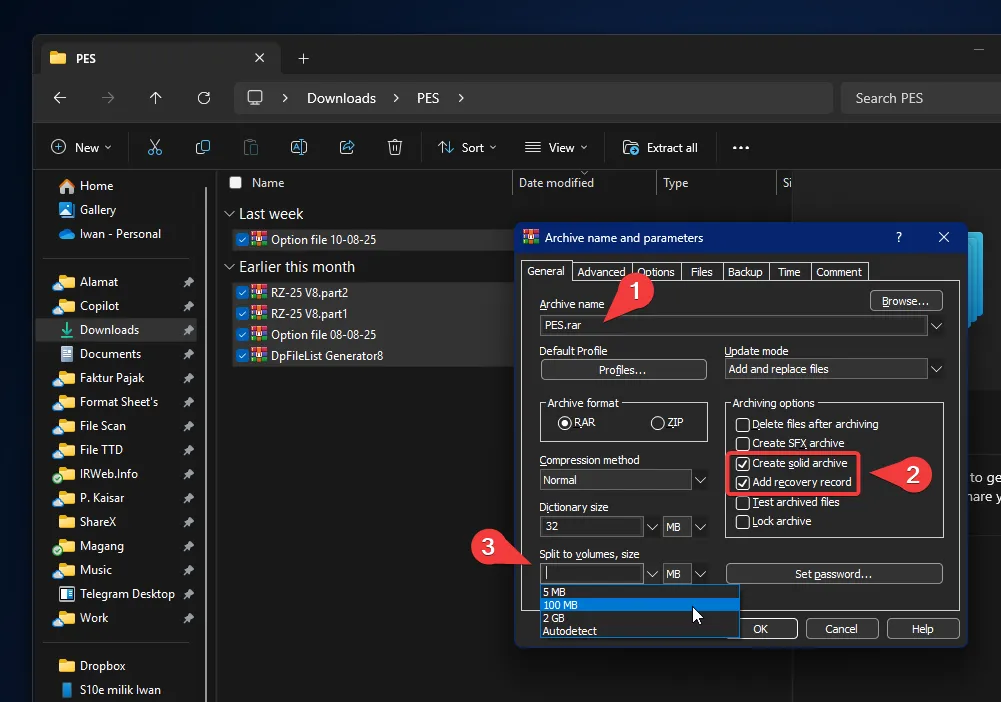
*The key setting is in **Split to volumes, size**.*
## #3 How to Rejoin and Extract the Parts
To avoid extraction failure on the receiver side, there is one rule you must emphasize.
### Keep All Parts in One Folder
All parts must be in the same directory, for example:
- `file.part1.rar`
- `file.part2.rar`
- `file.part3.rar`
If one part is missing, extraction will fail.
### Extraction Steps
**Make sure all parts are in one folder**
Verify every part file is present and stored in the same directory.
**Start extraction from the first part**
Right-click `part1.rar` and choose **Extract Here** or **Extract to...**.
**Let WinRAR merge automatically**
WinRAR will read the remaining parts and combine them during extraction.
That is it. Simple, practical, and very useful when handling large files.
## Common Problems and How to Fix Them
If extraction fails, it is usually one of these:
1. **One part is missing**
Download the missing part again. All part files must be complete.
2. **One part is corrupted**
Re-download only the damaged part (not the whole set) and retry extraction.
3. **Wrong extraction start point**
Always extract from `part1.rar`, never from `part2+`.
4. **File names changed accidentally**
Keep original naming sequence. Renaming one file can break automatic chain reading.
## Practical Integrity Check (Optional but Recommended)
For important files, verify after upload:
**Test extraction locally first**
Extract your own split archive once before sharing it.
**Store all parts in a clean folder**
Avoid mixed folders with old test archives that use similar names.
**Use WinRAR recovery record for resilience**
Keeping **Add recovery record** enabled improves tolerance against minor data damage.
Following these checks dramatically reduces “archive is corrupt” complaints from recipients.