# How to Install SAP GUI for Java 7.80 on Manjaro Linux
Canonical: https://snipgeek.com/blog/install-sap-gui-java-manjaro-linux
Locale: en
Description: A complete guide to installing SAP GUI for Java 7.80 on Linux without an S-user account, including dependencies and configuration.
Date: 2026-02-20
Updated:
Category: Linux
Tags: linux, tutorial, sap, java
JSON: https://snipgeek.com/api/posts/install-sap-gui-java-manjaro-linux?locale=en
---
For professionals working with SAP systems, being able to access the SAP GUI from various operating systems is a real necessity — not just a matter of convenience. The good news is that SAP actually provides **SAP GUI for Java**, which officially supports Linux. The problem is, to download it officially, you need an **S-user account** registered on the SAP Service Marketplace. And this is often the main hurdle.
Many of us as SAP users do not have direct access to that portal — it is usually only held by the IT team or company administrators. So even if our Linux is ready, the installer file cannot be obtained easily. I myself was stuck here for quite a while, until I finally received an installer file from a fellow blogger and SAP user. It is thanks to that sharing that this guide can be written — and now you don't have to go through the same frustration.
This guide will show you the easiest way to install SAP GUI for Java 7.80 on Manjaro Linux (and other distros in general), from dependencies to configuration.
---
## #1 Prerequisite: Install Java Runtime
SAP GUI for Java 7.80 requires **Java Development Kit (JDK) or Java Runtime Environment (JRE) version 17**. Make sure this is installed before proceeding.
On Manjaro, the installation is just one command line in the terminal:
```bash
sudo pacman -Syu jre-17-openjdk
```
This command will install OpenJDK version 17 — the primary dependency needed for the SAP GUI installer to run.
---
## #2 Download SAP GUI for Java 7.80 Installer
Because of its large size, this `.jar` format installer file is divided into **3 parts**. You must download all three and place them in the **same folder** before extracting.
> 📦 **Important: Extract before installing**
> Once all three files are downloaded, extract the first file (`.part1.rar`). The extraction process will automatically combine all parts and produce one main installer file: **`PlatinGUI780_0-80006509.JAR`**.
---
## #3 Run the Installation Process
After the `.JAR` file is successfully extracted, the installation process is very easy — as long as the Java Runtime from step #1 is installed correctly.
1. Locate the `PlatinGUI780_0-80006509.JAR` file in your folder.
2. **Right-click** on the file, select **"Open With Other Application"**, then choose **"OpenJDK Java 17 Runtime"**.
3. A graphical installation wizard will appear. Just follow the on-screen instructions, click "Next" until the process is complete.
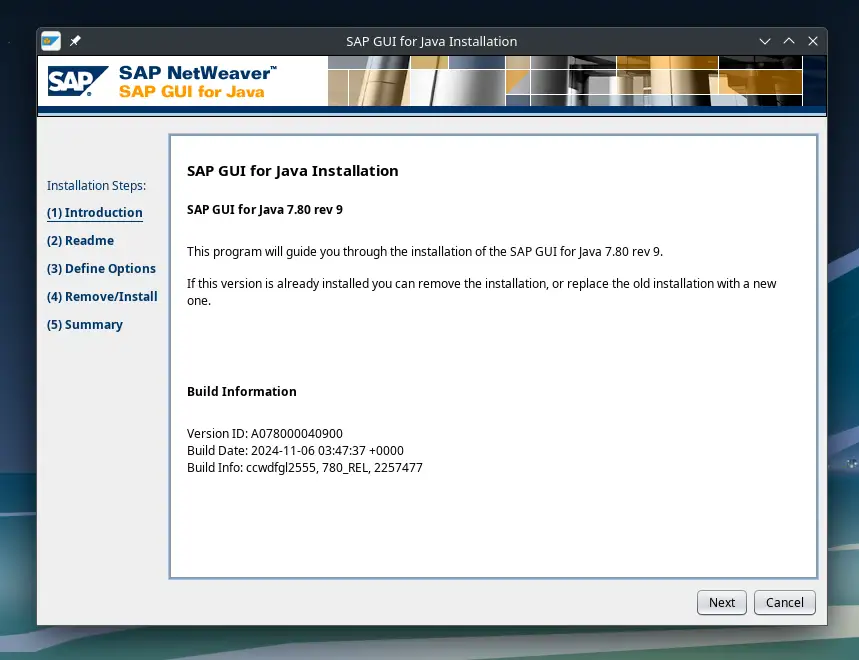
*The installation wizard will guide you through every step — just follow it until finished.*
After installation is complete, "SAP GUI" will appear in your application menu.
---
## #4 Initial Connection Configuration
Our main task — installation — is done. The next step is to configure the connection to your company's SAP system. This process is specific to each company, but generally, the steps look like this:
1. Open the SAP GUI application.
2. Click **New** to create a new connection.
3. Go to the **Advanced** tab.
4. Check the **"Expert Mode"** box.
5. Copy and paste the **Connection String** provided by your company's IT team into the available field.
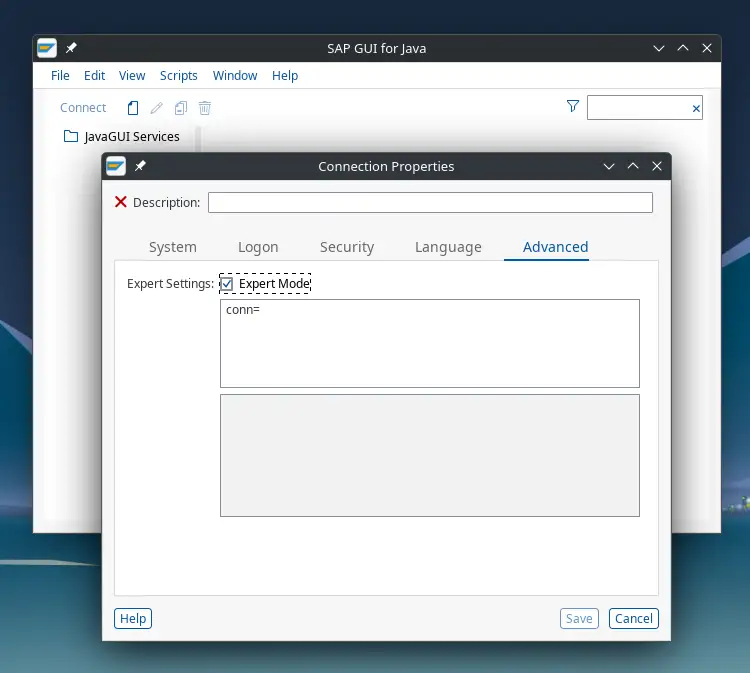
*Expert mode allows you to enter the 'Connection String' directly.*
For the rest, continue the configuration according to the internal guide from your company's IT team. Congratulations — now you can access the SAP system directly from your Manjaro desktop!
---
### References
1. [SAP GUI for Java 7.80 Documentation (PDF)](https://help.sap.com/doc/f540a730ff3c46a29c34be1fd3cd3275/780.00/en-US/sap_gui_for_java.pdf)
2. [SAP Community - SAP GUI for Java 7.80](https://community.sap.com/t5/technology-blog-posts-by-sap/sap-gui-for-java-7-80/ba-p/13534973)