# How to Rename Your PC in Windows 11 (Quick 4-Step Guide)
Canonical: https://snipgeek.com/blog/rename-pc-windows-11
Locale: en
Description: Learn how to rename your Windows 11 PC in under 2 minutes through Settings, verify the change, and fix common rename errors after restart.
Date: 2026-03-18
Updated:
Category: Windows
Tags: windows, windows-11, tutorial, device-name, troubleshooting
JSON: https://snipgeek.com/api/posts/rename-pc-windows-11?locale=en
---
If your fresh Windows 11 install shows a random name like `DESKTOP-CFL3R1S`, you can rename it in less than 2 minutes: open **Settings > System > About**, click **Rename this PC**, enter your preferred name, then restart. After reboot, the new name appears in your network list, Microsoft account devices page, and local system info.
This is one of the first tweaks worth doing after setup because a clear device name reduces confusion when you manage multiple PCs.
## Why Renaming Your PC Matters
A good PC name helps in daily admin tasks, especially when you:
- identify devices in **home/office Wi-Fi**,
- map shared folders on LAN,
- review devices in your Microsoft account,
- troubleshoot remote connections.
If you also plan to share files on local network, continue with this guide after renaming: [How to Share a Folder in Windows 11 via LAN and WiFi](/blog/share-folder-windows-11-lan-wifi).
## Prerequisites Before You Rename
- You are signed in with an account that has **administrator** permission.
- Save your active work, because a **restart is required** to fully apply the new name.
- Use a short, clear naming format (example: `OFFICE-EDIT-01`, `LAPTOP-RINA`, `DESKTOP-STUDIO`).
Verified for Windows 11 23H2 and 24H2 as of March 2026. Microsoft may adjust UI labels in future builds, but the path remains under System settings.
## Step-by-Step: Rename PC in Windows 11
**Open System settings quickly**
Right-click **Start**, then click **System**.

*Fastest path: Start right-click -> System.*
**Click "Rename this PC"**
On the **System > About** page, find the **Rename this PC** button near your current device name and click it.
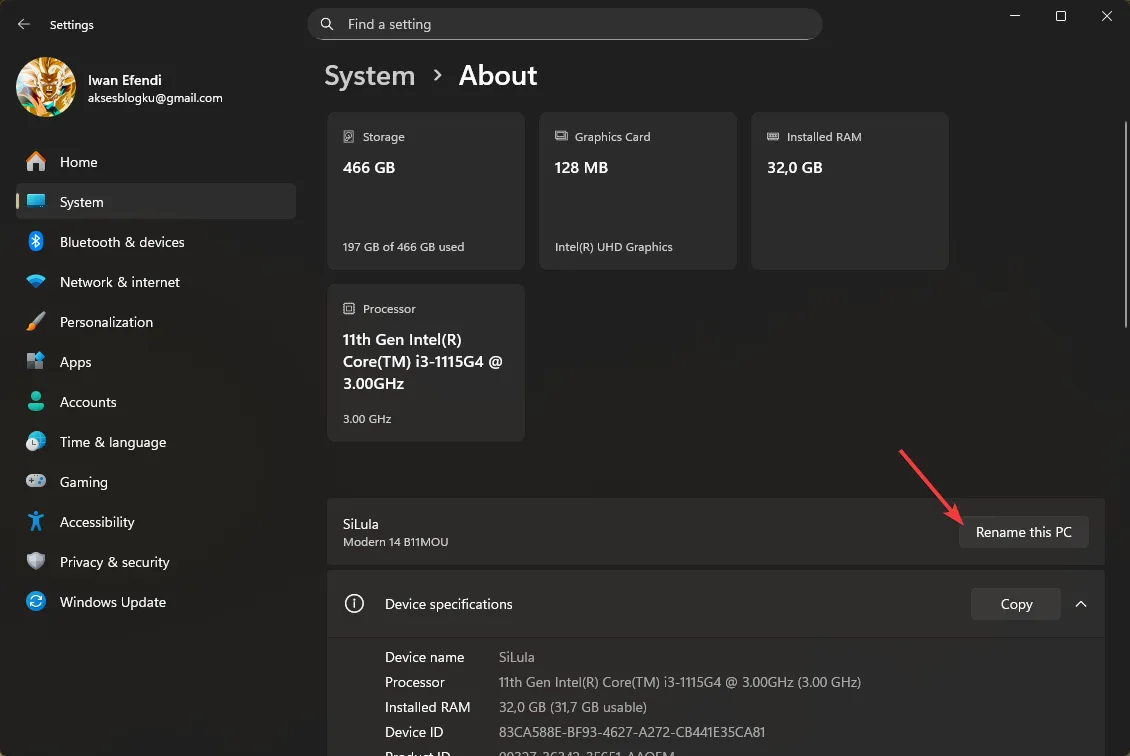
*You will see the current name at the top of this page.*
**Enter your new name**
Type the new computer name, then click **Next**.
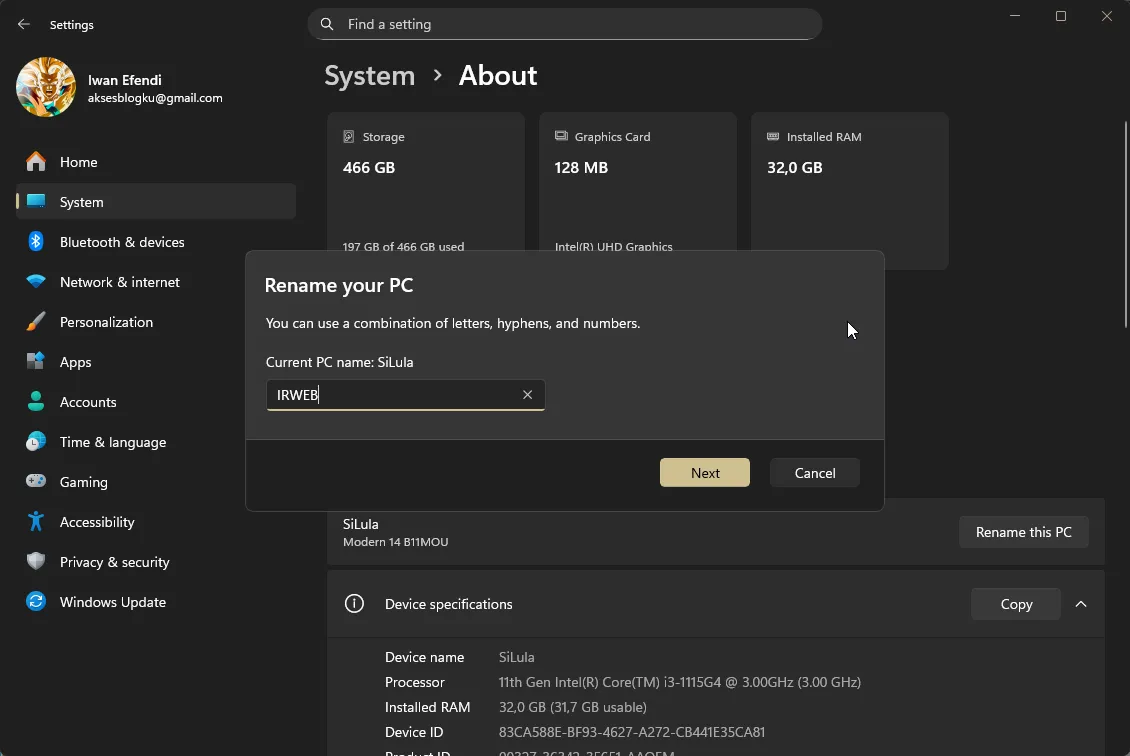
*Use a consistent pattern if you manage more than one machine.*
**Restart to apply**
Choose **Restart now** (or **Restart later** if you need to save work first).
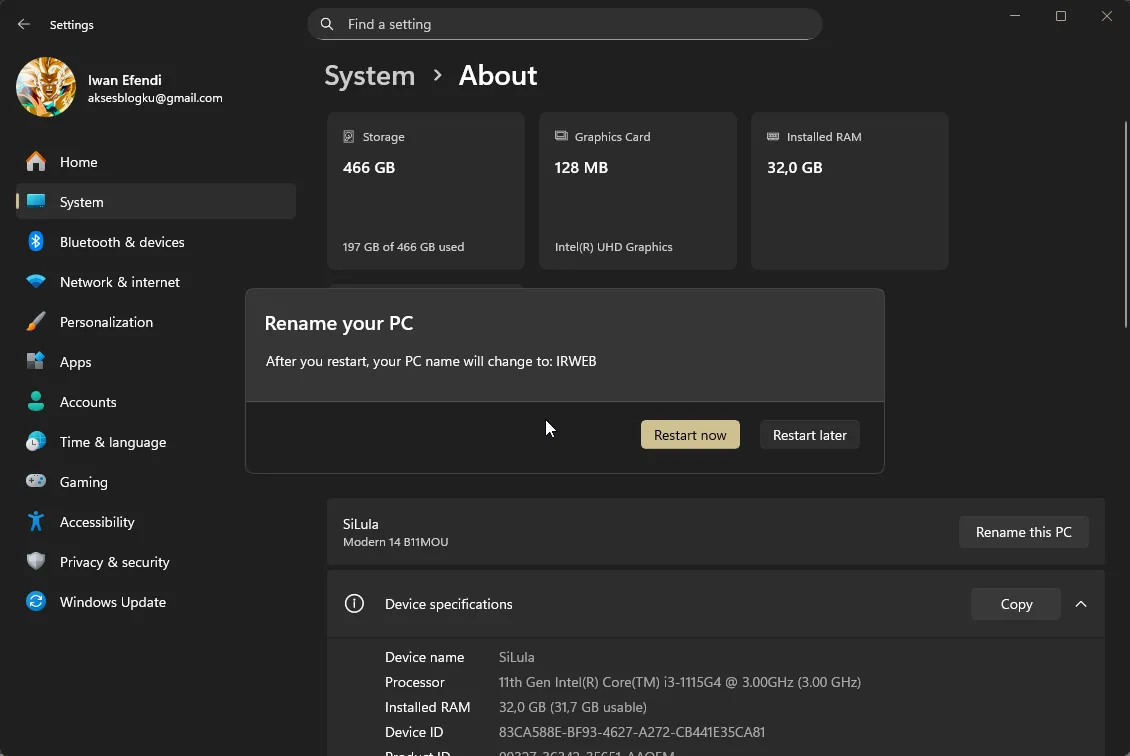
*The rename process is complete only after reboot.*
## Verify the New Name (Quick Checks)
After restart, run these checks so you know the rename actually applied everywhere.
### Check 1: Settings page
Go to **Settings > System > About** and confirm the displayed device name.
### Check 2: Command output
Open Command Prompt and run:
```powershell
hostname
```
Expected result:
```text
OFFICE-EDIT-01
```
(Your output should match your chosen name.)
### Check 3: Network visibility
From another PC in the same network, verify the new name appears when browsing available devices.
## Common Rename Issues and Fast Fixes
### 1) Name changed in Settings, but network still shows old name
- Restart one more time.
- Power-cycle the router or reconnect to Wi-Fi.
- Flush cache on the client PC by reopening File Explorer network view.
### 2) Rename button is blocked or unavailable
- Sign in with an administrator account.
- If this is a company-managed device, check policy restrictions with your IT admin.
### 3) New name rejected by Windows
- Remove unusual symbols.
- Keep the name short and practical.
- Use letters, numbers, and hyphens for best compatibility.
## Related Guides on SnipGeek
- [What to Do After Installing Windows 11: Complete Setup Checklist](/blog/to-do-after-install-windows11)
- [Windows 11 Installation Guide: From Start to Finish](/blog/clean-install-windows-11-step-by-step-guide)
- [How to Share a Folder in Windows 11 via LAN and WiFi](/blog/share-folder-windows-11-lan-wifi)
- [How to Set Automatic Dark Mode in Windows 11](/blog/auto-dark-mode-windows-11)
## Official References
- [Microsoft Support: Rename your Windows device](https://support.microsoft.com/en-us/windows/rename-your-windows-device-750bc75d-8ff8-e99a-90ab-20f7b48f8f92)
- [Microsoft Learn: Rename-Computer (PowerShell)](https://learn.microsoft.com/en-us/powershell/module/microsoft.powershell.management/rename-computer)
A clear PC name saves time every time you troubleshoot, share files, or manage devices. Do this once, and your Windows setup feels cleaner immediately.