# How to Share a Folder in Windows 11 via LAN and WiFi
Canonical: https://snipgeek.com/blog/share-folder-windows-11-lan-wifi
Locale: en
Description: Step-by-step guide to sharing folders in Windows 11 over LAN or WiFi, from enabling network discovery to opening shared folders by IP address.
Date: 2026-03-17
Updated:
Category: Windows
Tags: windows, windows-11, network, tutorial
JSON: https://snipgeek.com/api/posts/share-folder-windows-11-lan-wifi?locale=en
---
Folder sharing is still one of the most practical features in Windows 11, especially when you work with teammates on the same local network.
I still use this setup in small office environments because it is simple, fast, and saves time. Instead of repeatedly moving files with a flash drive, everyone can open the same folder directly from their own PC.
In this guide, I will walk you through the full setup flow: enabling required network settings, sharing a folder with proper permissions, and opening it from another computer using the target IP address.
## Step 1: Enable Network Discovery First
Before sharing any folder, make sure all devices on your network can see each other.
**Open network settings**
Open **Settings** in Windows 11, then go to **Network & internet**.
**Go to advanced sharing options**
Open **Advanced network settings**, then under **More settings** click **Advanced sharing settings**.
**Enable discovery and file sharing**
Turn on **Network Discovery** and **File Sharing** for all network profiles you use.
Inside this page, configure all three network profiles. For trusted home or office networks, you can enable all sharing options to avoid discovery issues.
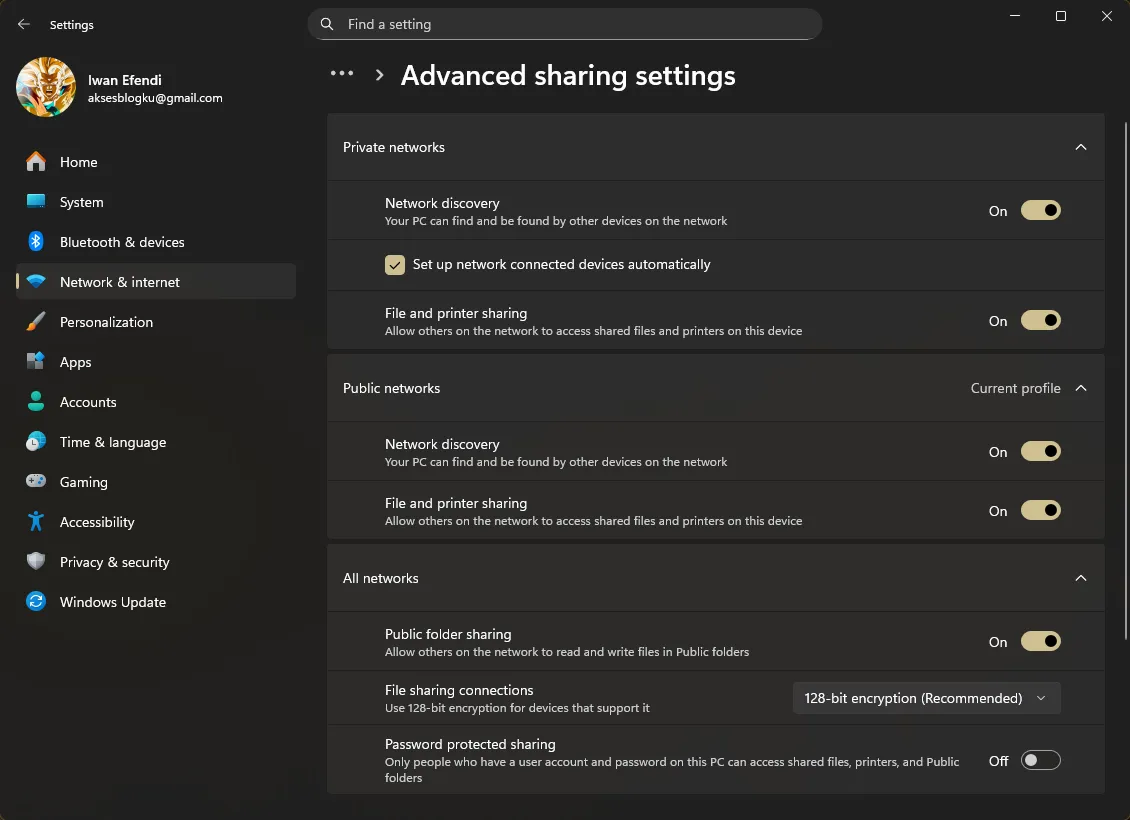
*Set all network profiles to enable Network Discovery and File Sharing.*
In the **All Networks** section, turn off **Password protected sharing** only when you are on a trusted private network. This makes access easier because coworkers will not need a local username and password.
Apply this setting on devices that will share folders and devices that will access them.
## Step 2: Share a Specific Folder
After network discovery is configured, share the folder you want other users to access.
**Open folder properties**
Right-click your target folder, then select **Properties**.
**Open sharing menu**
Go to the **Sharing** tab and click **Share...**.
**Add Everyone user**
In the user list, select **Everyone** from the dropdown, then click **Add**.
**Set permission level**
- **Read**: users can view files only.
- **Read/Write**: users can view and edit files.
**Complete sharing**
Click **Share** to finish.
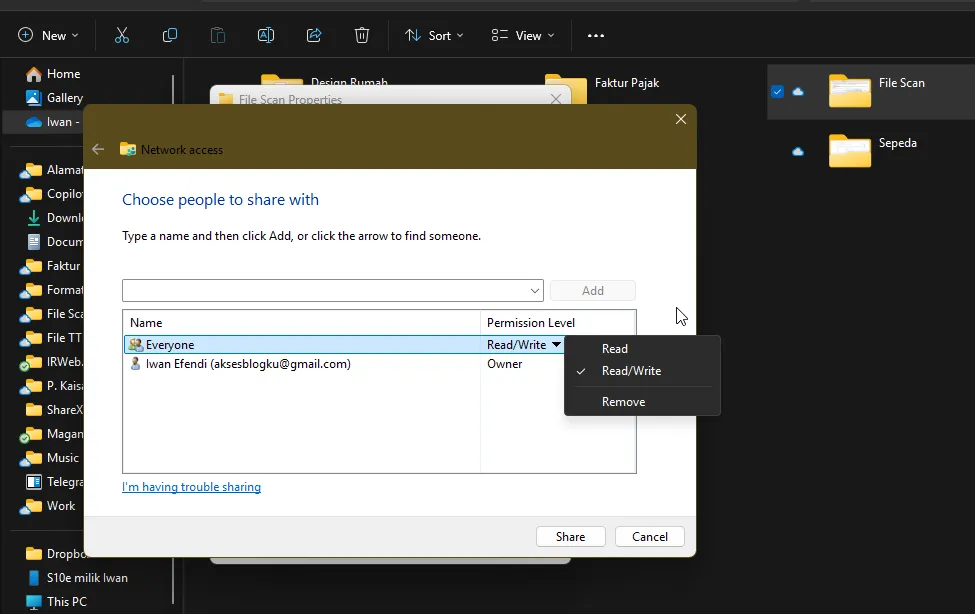
*Choose **Everyone** and set **Read/Write** if users need to edit files.*
For mixed environments, start with **Read** first. Upgrade to **Read/Write** only for folders that require active collaboration.
## Step 3: Access the Shared Folder from Another PC
To open the shared folder from another computer, you need the IP address of the source PC.
### Find the Source PC IP Address
**Open Command Prompt**
Open **Command Prompt** from Start.
**Run IP command**
Type `ipconfig`, then press Enter.
**Note the IPv4 address**
Find **IPv4 Address** (for example `192.168.1.5` or `10.27.30.150`).
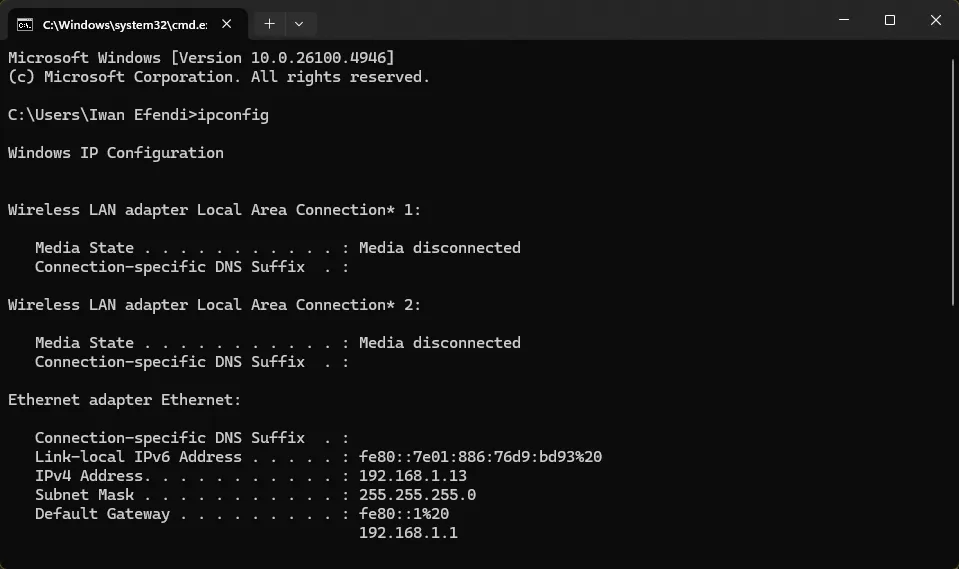
*Use the IPv4 Address from `ipconfig` as the target address.*
### Open Shared Folder via Run Command
**Open Run dialog**
Press Win + R.
**Enter target address**
Type `\\` followed by the source PC IP. Example: `\\10.27.30.150`.
**Open shared resources**
Press Enter.
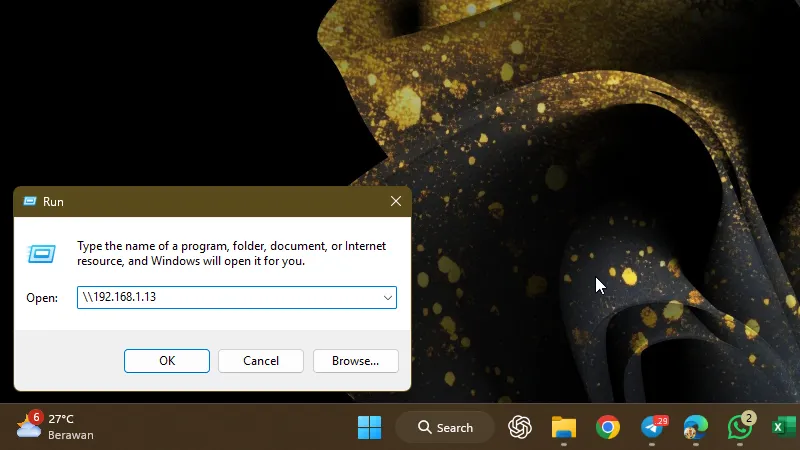
*Use `\\{ip_address}` in Run to list shared folders from that PC.*
If everything is configured correctly, File Explorer will show shared folders (and sometimes shared printers) from the target machine.
At this point, your local file transfer workflow becomes much easier: faster collaboration, fewer duplicate copies, and no more dependency on flash drives for every update.