How to Enable Auto Dark Mode in Windows 11: 2 Best Ways
Iwan Efendi4 min

Learn how to automatically schedule light and dark mode in Windows 11 using Auto Dark Mode and PowerToys Light Switch.
Are you tired of manually switching your Windows theme every morning and night? While Windows 11 offers beautiful Light and Dark modes, it surprisingly lacks a native feature to switch them automatically based on the time of day—unlike Android or macOS which have had this for years.
Fortunately, there are two excellent solutions: Auto Dark Mode, a popular third-party app, and Light Switch, a newer official module from Microsoft via PowerToys. This article will cover both methods in detail.
It's a fair question. Microsoft has been relatively slow to bring theme automation compared to its competitors. For years, the Windows community had to rely on third-party developers to fill this gap.
However, since PowerToys version 0.95, Microsoft has finally introduced an integrated solution—Light Switch—as an official tool within the Windows ecosystem.
Auto Dark Mode is the most time-tested and feature-rich choice. It's perfect if you need granular control—such as excluding specific apps from theme changes or automatically switching your wallpaper. This app even won the Microsoft Store App Awards 2022, so its quality is top-notch.
After running the command, winget will automatically download and install the app. You'll see a progress bar followed by a "Successfully installed" confirmation.
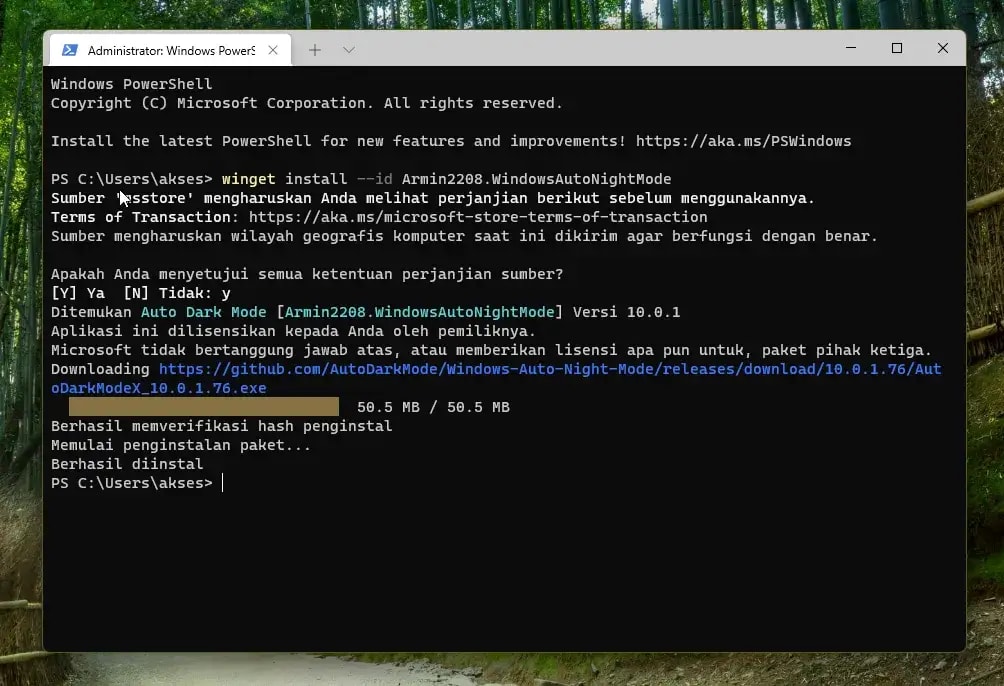 Via Microsoft Store — if you prefer a graphical interface, search for "Auto Dark Mode" in the Store and click Install. It has a high rating and is completely free.

 App-Specific, Gaming, and Wallpaper Settings
Beyond scheduling, Auto Dark Mode offers advanced features in the sidebar:
App-Specific, Gaming, and Wallpaper Settings
Beyond scheduling, Auto Dark Mode offers advanced features in the sidebar:
Light Switch is Microsoft's official answer to this long-standing request. While not as feature-heavy as Auto Dark Mode, it offers simplicity and guaranteed compatibility as part of the official PowerToys suite.

 Keyboard Shortcut
Under Shortcuts, you can view or change the instant theme toggle. The default is Win + Ctrl + Shift + D. This is very useful for overriding the schedule quickly.
Automatic Schedule
Under Schedule, select your preferred mode. If you choose Sunset to sunrise, it calculates times based on your location, including optional minute offsets.
Behavior Scope
Under Behavior, you can choose what changes:
Keyboard Shortcut
Under Shortcuts, you can view or change the instant theme toggle. The default is Win + Ctrl + Shift + D. This is very useful for overriding the schedule quickly.
Automatic Schedule
Under Schedule, select your preferred mode. If you choose Sunset to sunrise, it calculates times based on your location, including optional minute offsets.
Behavior Scope
Under Behavior, you can choose what changes:
Summary: If you just want basic automation and don't want extra standalone apps, Light Switch is perfect. If you are a power user wanting total control over every detail, Auto Dark Mode remains the king.
Why Doesn't Windows 11 Have This Natively?
Option 1: Auto Dark Mode
Installation
Via PowerShell (Winget) — the fastest way:winget install --id Armin2208.WindowsAutoNightModeZoom
Zoom
Configuration
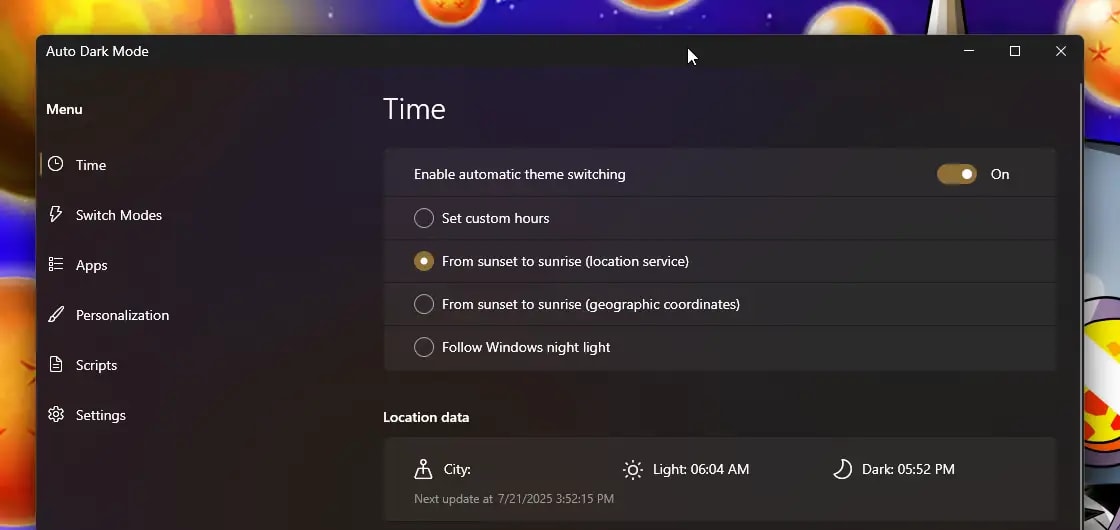
Once installed, open the app from the Start Menu. The first tab you'll see is Time, where you define when the theme should switch. Scheduling Modes There are several scheduling options available:- Set custom hours — manually set the exact time for Dark and Light mode.
- From sunset to sunrise (location service) — theme changes automatically based on your real-time local sunset/sunrise times. This is the recommended option.
- From sunset to sunrise (geographic coordinates) — similar to above, but using manual GPS coordinates.
- Follow Windows night light — syncs with your existing Windows Night Light schedule.
Zoom
- Apps — keep specific apps (like Microsoft Office) in light mode even when the system is dark.
- Switch Modes — enable exceptions for gaming or full-screen apps to prevent themes from changing during a session.
- Personalization — configure automatic wallpaper changes to match your theme for a cohesive experience.
Option 2: Light Switch in PowerToys
Installation / Update PowerToys
You must have PowerToys installed first. It's free and available on the Microsoft Store. Light Switch is available starting from PowerToys 0.95. Ensure you are "Up to date" in the Home settings page.Zoom
How to Enable and Configure
Click Light Switch in the left sidebar and ensure the master toggle is set to On. From this single page, you can manage shortcuts, schedules, and behavior.Zoom
- System — Taskbar, Start Menu, and system UI.
- Apps — all applications that support the Windows theme setting.
Comparison: Which One Should You Choose?
| Need | Recommendation |
|---|---|
| Simple automation without hassle | Light Switch |
| Per-app theme control | Auto Dark Mode |
| Automatic wallpaper switching | Auto Dark Mode |
| Official integrated solution | Light Switch |
| Quick keyboard shortcut toggle | Light Switch |
Important Notes
- If themes change randomly after a PowerToys update, try updating to the latest patch; this is usually fixed quickly.
- Auto Dark Mode needs to run in the background to function. Ensure it isn't "killed" by system optimizers.
- For sunset/sunrise modes, grant location access so the apps can calculate accurate times.
Topics
Topics in this article
Explore related topics and continue reading similar content.
Share this article
Discussion
Preparing the comments area...