Install Epson L310 Driver on Ubuntu 25.10 — Full Guide
Iwan Efendi4 min
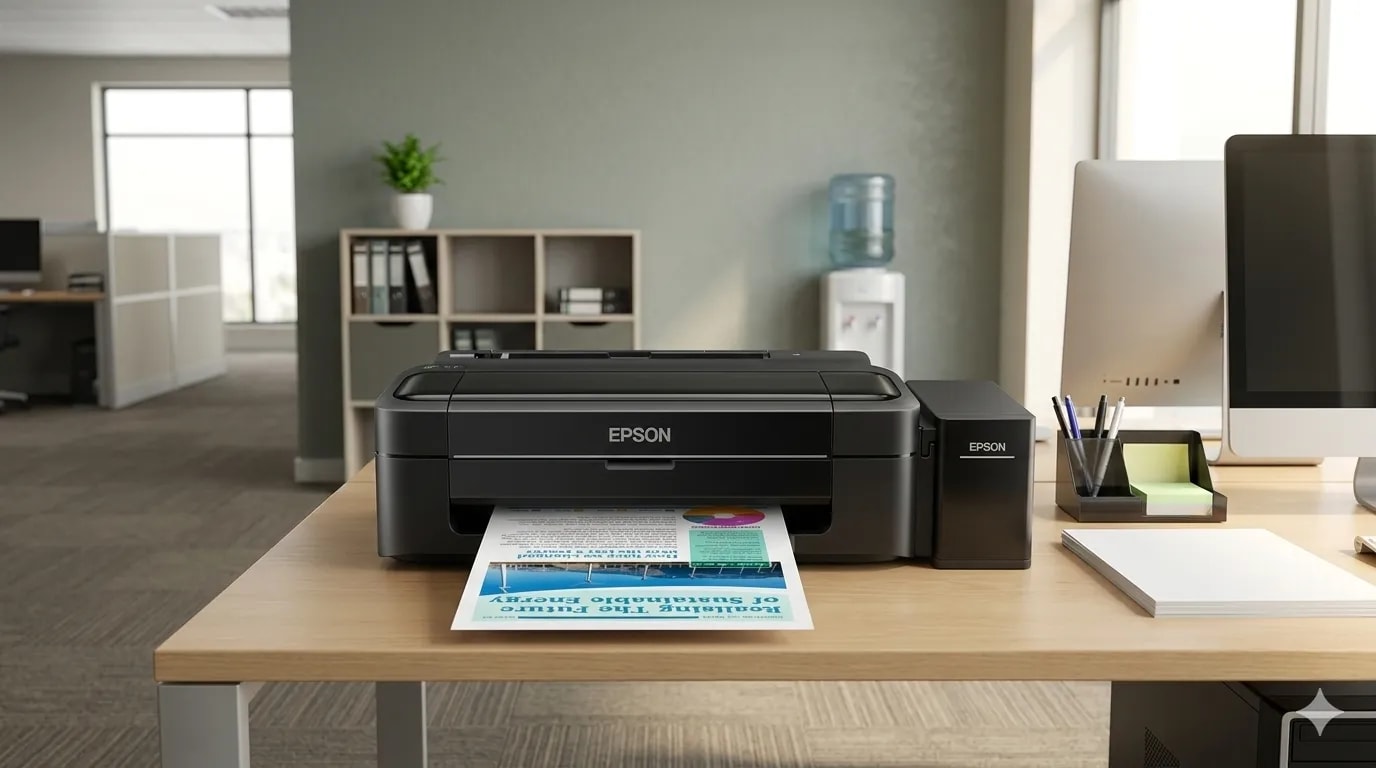
How to install the Epson L310 driver on Ubuntu — download the .deb package, handle the lsb dependency, add the printer via GUI or terminal, and test print.
I've written before about installing the Epson L310 driver on Windows — and honestly, that process is almost embarrassingly simple. A
There are two ways to get the driver. I recommend the Google Drive mirror for speed — the official Epson site works fine, but the navigation is a bit of a maze and it's easy to land on the wrong file.
Epson L310 Inkjet Driver for Linux (.deb)~5 MBDownload
Epson Linux Driver Search (Official)Download
Either way, you'll end up with a
Once the file is downloaded, you have two options: the GUI route through App Center (easier), or the terminal route (faster once you know the command).
Double-Click the
Ubuntu's App Center should open automatically and display the driver package details.
Using
Installing the driver is only half the job. Ubuntu still needs to know the printer exists. For that, I use system-config-printer — a lightweight GUI tool that makes adding printers straightforward.
Once installed, open it:
The L310's print quality can vary depending on the mode you pick — and this is true on Linux just as it is on Windows. I always set mine to High quality for any document I actually care about. Standard mode is noticeably lighter.
To adjust settings, open Print Settings → right-click your printer → Properties. The key options are:
Honestly, setting this up on Ubuntu felt more manual than on Windows — but it's not difficult once you know about the
What's the difference between the
If you're running a dual-boot setup, here's why dual-booting Windows and Ubuntu is still relevant in 2026 — and what each OS does best. And if your L310 ever hits a "Service Required" lockout from the waste ink counter, the same technique used for the Epson L4150/L4160 resetter applies to the L-series family.
.exe installer, a few clicks, done. So when I booted into Ubuntu 25.10 for the first time and tried to print something, I was quietly hoping it would be just as smooth.
It wasn't. But it wasn't a nightmare either.
The L310 driver doesn't ship with Ubuntu's default repos, which means you have to fetch it manually. I spent about twenty minutes figuring out the right steps — including one dependency error that had me briefly convinced I'd broken something. I hadn't. Here's exactly what I did.
Download the Epson L310 Driver for Linux
If you use the Epson official site
Open the link → type
L310 in the search box → look for Epson Inkjet Printer Driver for Linux → download the .deb file for amd64 architecture..deb package in your Downloads folder. That's what we'll work with.
Install the Driver
Method 1: Via App Center (GUI)
1
Open Your Downloads Folder
Navigate to your Downloads folder in the file manager.2
Double-Click the .deb File
Ubuntu's App Center should open automatically and display the driver package details.3
Click Install
Hit Install, enter your password when prompted, and wait for it to complete. That's it.Method 2: Via Terminal
If you prefer the terminal,cd into Downloads and run dpkg:
cd ~/Downloads
sudo apt install ./epson-inkjet-printer-*.debapt instead of raw dpkg allows Ubuntu to automatically resolve and install any required dependencies in one go.
Ubuntu 25.10 — Missing lsb Dependency
On Ubuntu 25.10 and later, you might hit this error during install:The The driver itself works perfectly fine without
dpkg: dependency problems prevent configuration of epson-inkjet-printer-...
epson-inkjet-printer-... depends on lsb; however:
lsb package was removed from Ubuntu starting with 25.10. The fix is to force-ignore it:sudo dpkg -i --ignore-depends=lsb epson-inkjet-printer-*.deblsb — it's a legacy dependency that Epson hasn't updated yet.Add the Printer to Your System
sudo apt install system-config-printer1
Open Print Settings
Press Super, type Print Settings, and open the app.2
Click Add
Hit the Add button to start detecting connected printers.3
Connect Your Printer
Make sure the L310 is connected via USB cable and switched on. It should appear in the list automatically.4
Follow the Wizard
Click Forward through the steps. Ubuntu will match the printer to the Epson driver you just installed.5
Print a Test Page
Once the wizard completes, print a test page to confirm everything is working. A clean test print means you're done.Printer Settings Worth Knowing
- Paper Size: A4 (default, should already be correct)
- Color Mode: Color or Grayscale
- Print Quality: Standard or High — I recommend High for anything important
- Orientation: Portrait or Landscape
It Works. Took Me About 20 Minutes.
lsb dependency quirk. That one error had me second-guessing myself for a few minutes before I realized what was happening. If you hit it, don't panic. The --ignore-depends flag sorts it out cleanly.
If you have a different Ubuntu version or the driver file name differs slightly on your machine, adjust the *.deb wildcard accordingly — or just type the full filename.
Got a different error or a step that didn't work? Drop it in the comments and I'll take a look.
FAQ
Does this driver work on Ubuntu 26.04 LTS as well?
Yes. The same.deb package installs on Ubuntu 26.04 LTS with the same --ignore-depends=lsb workaround. Epson hasn't updated the dependency list, but the driver binary itself is compatible with kernels up to 7.x.
Can I use this printer wirelessly on Ubuntu?
The L310 is a USB-only printer — it has no WiFi or Ethernet port. If you need wireless printing, you'd have to connect the printer to a USB print server or share it from another machine running CUPS. For that, check your router's USB port or another always-on device.Why doesn't Ubuntu detect the L310 automatically?
Epson doesn't contribute their inkjet drivers to the open-source printer driver database (OpenPrinting). Unlike HP printers that work out of the box via HPLIP, Epson requires a proprietary.deb from their download center.
What's the difference between the apt install method and dpkg -i?
apt install ./file.deb resolves dependencies automatically — if the package needs cups or another library, it fetches them. dpkg -i installs only the file itself and will fail if dependencies are missing. The --ignore-depends flag is only needed when the dependency (lsb) is genuinely unnecessary.
Related Articles
References
Topics
Topics in this article
Explore related topics and continue reading similar content.
Share this article
Discussion
Preparing the comments area...