How to Remove Duplicate OneDrive Folders in Windows 11
Iwan Efendi4 min

Fix duplicate OneDrive folders stuck in Windows 11 File Explorer navigation pane using a safe registry edit, common on LTSC and debloated installs.
I recently decided to perform a clean installation of Windows 11 LTSC edition. If you are not familiar, LTSC is a lightweight version of Windows that strips away most of the bloatware, including Microsoft's built-in apps like OneDrive. It is great for performance, but strangely, once I reached the desktop, I found two "ghost" OneDrive folders hanging out in my File Explorer navigation pane.
These folders were essentially useless. They couldn't be deleted through the UI, and clicking them did absolutely nothing. It is a small detail, but for someone who likes a clean workspace, it was incredibly annoying. After trying standard fixes like unlinking an account (which wasn't even there), I found the solution hidden deep within the Windows Registry.
In LTSC or custom debloated installs, OneDrive app components may be removed but some Explorer registration keys can remain. File Explorer reads those registration keys (CLSID/NameSpace), then still renders a OneDrive node even though the app endpoint is gone.
That is why you see a folder in the sidebar that does nothing when clicked.
Before changing anything:
The first step is to clean up the 'keys' that tell File Explorer to display these folders in the sidebar.
 Double-check you are in the HKEY_CURRENT_USER hive.
 Removing the CLSID folder associated with OneDrive.
Close the Registry Editor and reopen File Explorer. In many cases, those duplicate folders will vanish immediately.
If "OneDrive - Personal" still reappears or refuses to go away after a restart, we need to adjust one specific stubborn key.
This second step works because
Removing the CLSID folder associated with OneDrive.
Close the Registry Editor and reopen File Explorer. In many cases, those duplicate folders will vanish immediately.
If "OneDrive - Personal" still reappears or refuses to go away after a restart, we need to adjust one specific stubborn key.
This second step works because 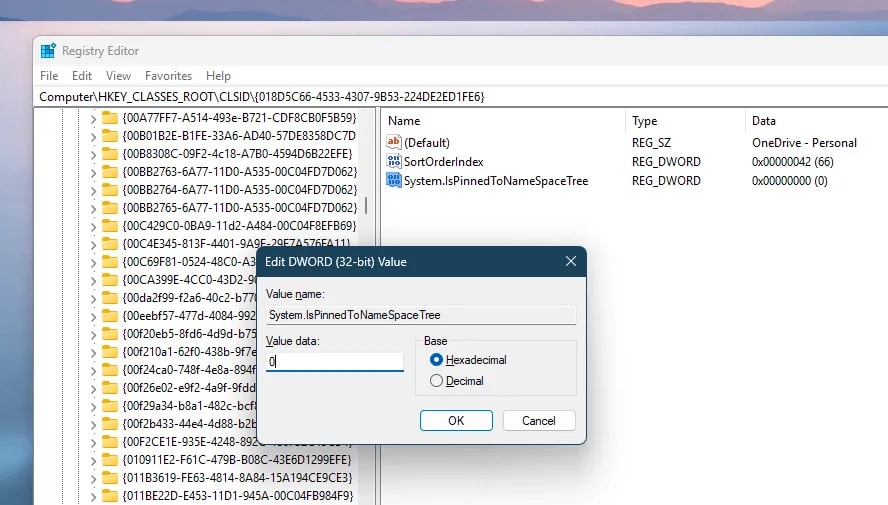 Setting this to 0 prevents it from being pinned to the sidebar.
You might need to restart your computer for the changes to take full effect. Once done, your File Explorer should be back to a clean, minimal state.
If Explorer behaves unexpectedly after edits:
Setting this to 0 prevents it from being pinned to the sidebar.
You might need to restart your computer for the changes to take full effect. Once done, your File Explorer should be back to a clean, minimal state.
If Explorer behaves unexpectedly after edits:
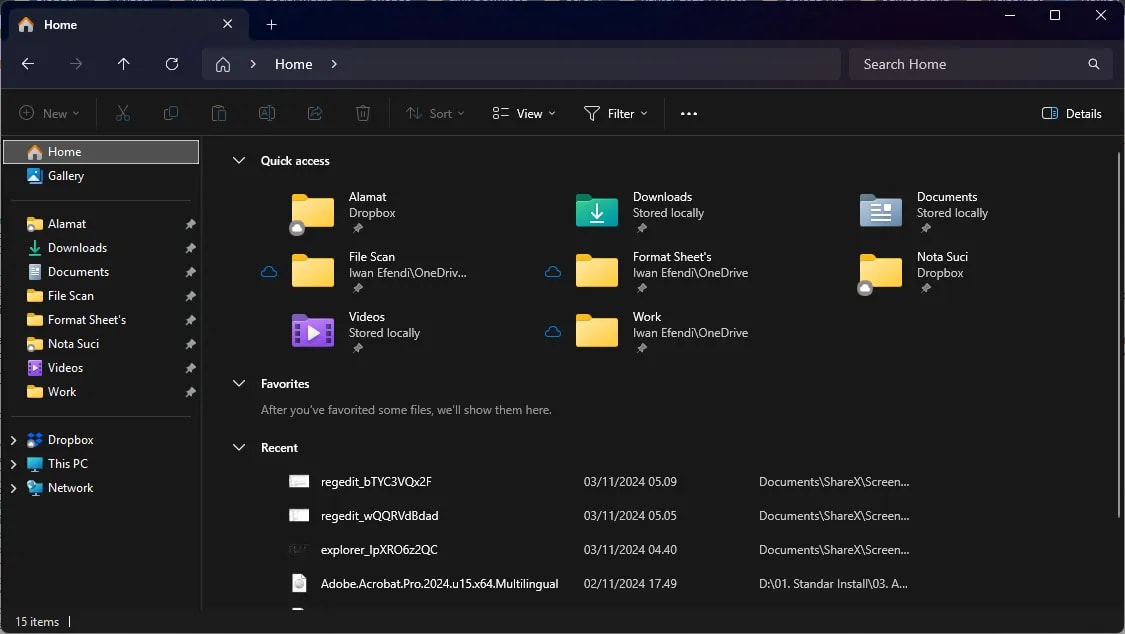 My final File Explorer view, much better without those phantom folders.
If you ever want to bring it back, just head back to Part 2 and change the value back to
If you are doing a fresh Windows 11 setup or cleaning up an existing install, these guides might help:
My final File Explorer view, much better without those phantom folders.
If you ever want to bring it back, just head back to Part 2 and change the value back to
If you are doing a fresh Windows 11 setup or cleaning up an existing install, these guides might help:
Critical Warning: Backup Your Registry
This method involves editing the Windows Registry. Errors here can cause serious system issues. Proceed at your own risk, and I highly recommend backing up your registry before starting.
Why This Happens (Quick Context)
Safe Registry Backup (Do This First)
1
Create a System Restore Point
Open Start, search for Create a restore point, then create one with a clear label.
2
Export only the key you are about to edit
In Registry Editor, right-click the target key and choose Export.
3
Store backup
.reg files in a dedicated folder
Keep one folder per fix session so rollback is fast and unambiguous.Part 1: Removing Folder Entries from the NameSpace
1
Open Registry Editor
Press Win + R, typeregedit, and press Enter.2
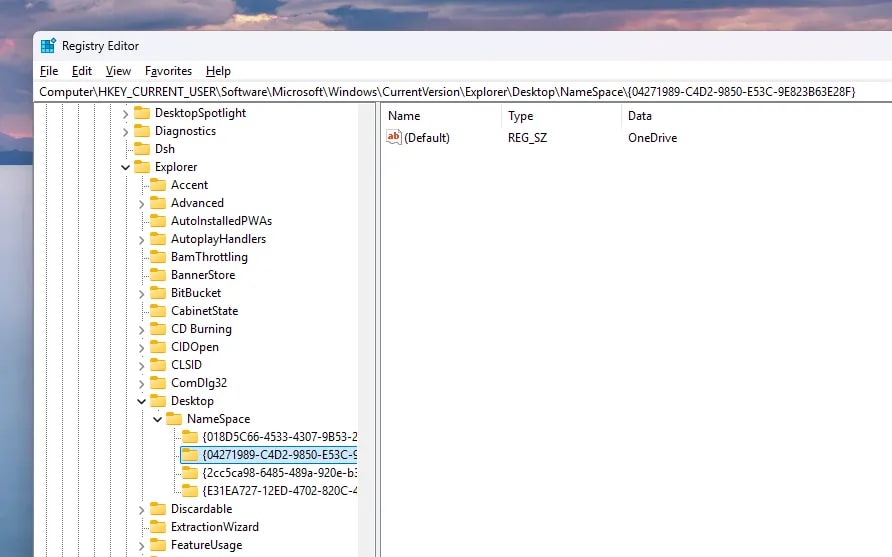
Navigate to NameSpace
Copy and paste the following address into the top bar and press Enter:Computer\HKEY_CURRENT_USER\Software\Microsoft\Windows\CurrentVersion\Explorer\Desktop\NameSpaceZoom
3
Identify and Delete OneDrive Keys
Under theNameSpace folder in the left pane, you'll see several folders with long alphanumeric names (CLSIDs). Click each one and check the Data column in the right pane.Look for entries that mention "OneDrive". Once found, right-click that folder in the left pane and select Delete. Repeat this for any duplicate OneDrive entries you find.Zoom
Part 2: Eliminating the Stubborn "OneDrive - Personal" Folder
System.IsPinnedToNameSpaceTree controls whether that shell folder is pinned in Explorer navigation.
1
Locate the Specific CLSID
Back in Registry Editor, navigate to this exact path:Computer\HKEY_CLASSES_ROOT\CLSID\{018D5C66-4533-4307-9B53-224DE2ED1FE6}2
Change Pinning Status
In the right-hand pane, find the entry namedSystem.IsPinnedToNameSpaceTree. Double-click it and change the Value data from 1 to 0. Click OK.Zoom
Recovery (If Something Looks Wrong)
- Double-click your exported
.regbackup file to restore the original key. - Restart Explorer from Task Manager or reboot the PC.
- If still unstable, use the restore point you created before registry edits.
System.IsPinnedToNameSpaceTree back to 1 usually returns the default behavior.
Zoom
1. Hopefully, this helps you reclaim some visual peace in Windows 11!
Related Windows 11 Cleanup Tips
- What to Do After Installing Windows 11: Complete Setup Checklist — covers the full post-install optimization flow, including OneDrive activation if you want it back.
- How to Share a Folder in Windows 11 via LAN and WiFi — useful if your LTSC install also stripped network sharing defaults.
- How to Rename Your PC in Windows 11 — another quick personalization step after a clean install.
Frequently Asked Questions
Will deleting these registry keys break OneDrive if I install it later?
No. These keys only control whether File Explorer displays the OneDrive folder in the sidebar. If you install OneDrive later, it will recreate its own proper registry entries during setup.Does this fix work on Windows 11 Home and Pro editions too?
Yes. While this issue is most common on LTSC and debloated installs, the same registry paths exist on all Windows 11 editions. The fix works identically.Do I need to restart my PC after editing the registry?
For Part 1, simply reopening File Explorer is usually enough. For Part 2 (the IsPinnedToNameSpaceTree change), a full restart is sometimes needed for the change to take effect.Can I use a .reg file to automate this fix?
Yes. You can create a.reg file that sets System.IsPinnedToNameSpaceTree to 0 and deletes the NameSpace entries. However, I recommend doing it manually the first time so you understand exactly what is being changed.
References
Topics
Topics in this article
Explore related topics and continue reading similar content.
Share this article
Discussion
Preparing the comments area...