SAP GUI for Java Shows Two Icons on Ubuntu? Here's the Fix
Iwan Efendi2 min

SAP GUI for Java showing two icons on your Ubuntu dock? Fix it in minutes by adding StartupWMClass to the .desktop file — a common GNOME window grouping issue.
Baca dalam IDID
The first time I noticed it, I thought something was broken. I had SAP GUI for Java pinned to my GNOME dock, but every time I launched it, a second icon appeared right next to it — as if two completely different apps were running. Close the app, the extra icon vanishes. Open it again, back it comes.
I spent more time than I'd like to admit checking if the
This is a classic Java app problem on GNOME. When you launch an app, GNOME tries to match the running window back to its launcher so it can group them in the dock. It does this using a property called WM_CLASS — a window identifier that the app sets when it opens.
Most modern apps set this correctly. SAP GUI for Java doesn't. So GNOME sees an unrecognized window, treats it as something new, and — helpfully, unhelpfully — creates a fresh dock icon for it.
The fix is telling GNOME which WM_CLASS belongs to which launcher, using the
Your cursor will turn into a crosshair. Click directly on the SAP GUI window. You'll get output like this:Note down that value — you'll need it in the next step. The important part is the second string: In my case it showed up at:If you see multiple results, look for the one under Inside the Your file should end up looking something like this:Save with Ctrl+O → Enter, then exit with Ctrl+X.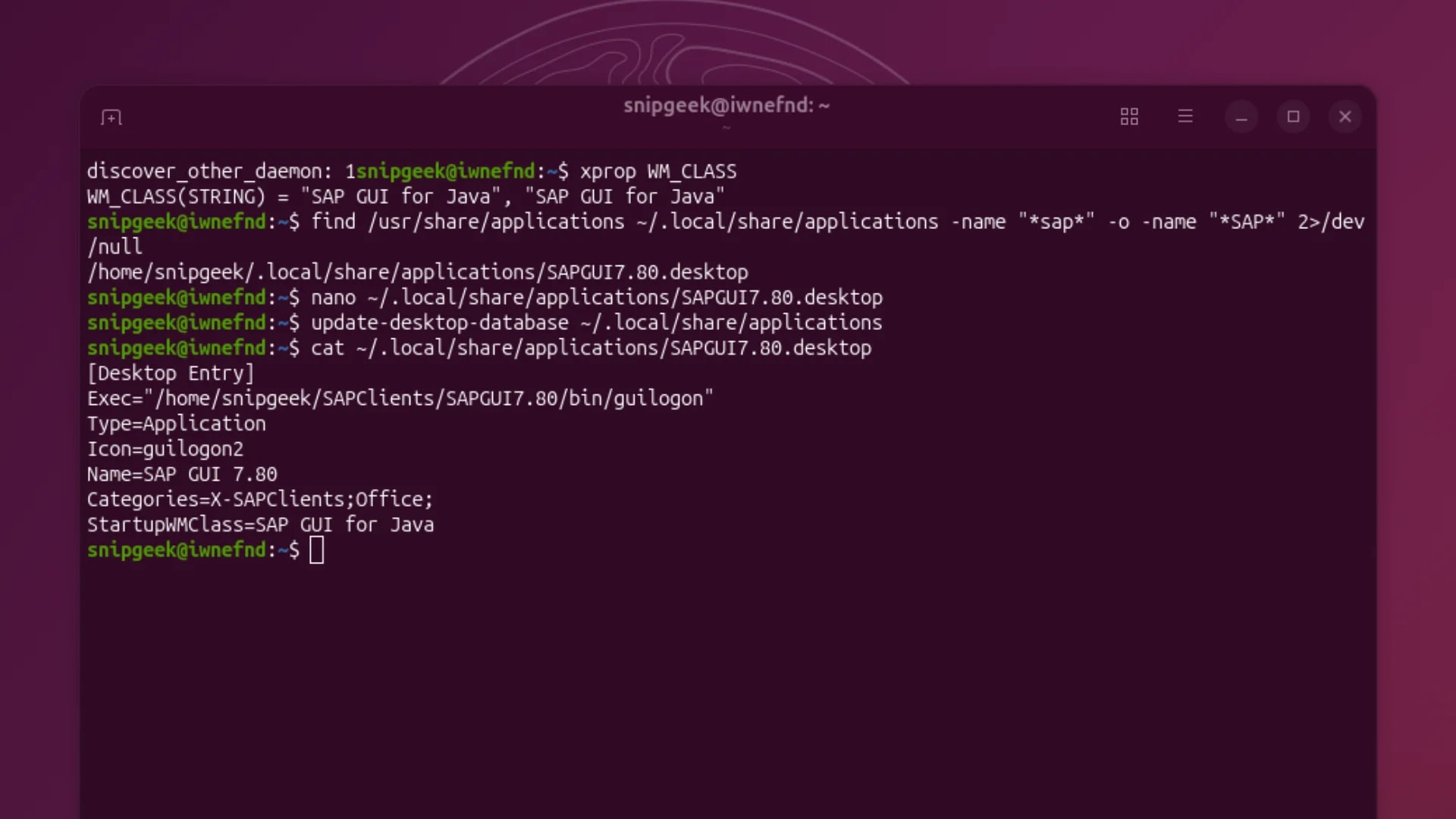 Then log out and log back in so GNOME fully re-reads the desktop files. A simple reload isn't always enough — the full session restart is what makes it stick.Open SAP GUI. The pinned icon should now become the active window icon — no duplicate, no extra entry. ✅
Java apps are compiled to run on the JVM, and the JVM doesn't automatically pass the app's name as a window class to the display server. That's the root of the problem. The window shows up with a generic or mismatched WM_CLASS, and GNOME has no way to link it back to the launcher.
It's not a SAP-specific bug — DBeaver, JetBrains IDEs, and other Java-based desktop apps can hit this exact same issue. The
Then log out and log back in so GNOME fully re-reads the desktop files. A simple reload isn't always enough — the full session restart is what makes it stick.Open SAP GUI. The pinned icon should now become the active window icon — no duplicate, no extra entry. ✅
Java apps are compiled to run on the JVM, and the JVM doesn't automatically pass the app's name as a window class to the display server. That's the root of the problem. The window shows up with a generic or mismatched WM_CLASS, and GNOME has no way to link it back to the launcher.
It's not a SAP-specific bug — DBeaver, JetBrains IDEs, and other Java-based desktop apps can hit this exact same issue. The
If you've been staring at that second icon and trying to figure out what went wrong — I hope this saves you the same head-scratching I went through. Drop a comment if you hit a different WM_CLASS value or if your distro puts the
.desktop file was corrupted or if I'd somehow installed it twice. Turns out the fix is a single line.
Why GNOME Creates a Second Icon
StartupWMClass property inside the .desktop file.
Also applies on other distros
I ran into this on Ubuntu, but the same fix works on any GNOME-based Linux — Fedora, Pop!_OS, Zorin, and so on. If you're on Manjaro or Arch, the SAP GUI install process is a bit different, but the
.desktop fix is identical.The Fix: Adding StartupWMClass
1
Find the WM_CLASS of Your SAP Window
Open SAP GUI first so it's running, then fire up a terminal and run:xprop WM_CLASSWM_CLASS(STRING) = "SAP GUI for Java", "SAP GUI for Java"
SAP GUI for Java.2
Locate Your SAP .desktop File
Run this to find where your launcher file lives:find /usr/share/applications ~/.local/share/applications -name "*sap*" -o -name "*SAP*" 2>/dev/null/home/snipgeek/.local/share/applications/SAPGUI7.80.desktop
~/.local/share/applications/ — that's the user-level one SAP installs by default.3
Edit the .desktop File
Open it with nano (or any text editor):nano ~/.local/share/applications/SAPGUI7.80.desktop[Desktop Entry] section, add this line:StartupWMClass=SAP GUI for Java[Desktop Entry]
Exec="/home/snipgeek/SAPClients/SAPGUI7.80/bin/guilogon"
Type=Application
Icon=guilogon2
Name=SAP GUI 7.80
Categories=X-SAPClients;Office;
StartupWMClass=SAP GUI for JavaZoom
Running xprop and editing the .desktop file directly in terminal.
4
Refresh and Test
Tell the desktop database to pick up your changes:update-desktop-database ~/.local/share/applicationsWhy This Happens With Java Apps Specifically
StartupWMClass trick is the standard workaround, and once you've done it for one app, you'll know exactly what to reach for the next time.
Reuse this fix for other Java apps
If you use DBeaver, IntelliJ IDEA, or any other Java desktop app that shows double icons, find their
.desktop file and add the same StartupWMClass property. Just run xprop WM_CLASS while that app is open to get the right value.If you've been staring at that second icon and trying to figure out what went wrong — I hope this saves you the same head-scratching I went through. Drop a comment if you hit a different WM_CLASS value or if your distro puts the
.desktop file somewhere unexpected.Topics
Topics in this article
Explore related topics and continue reading similar content.
Share this article
Discussion
Preparing the comments area...