Epson L4150 & L4160 Resetter: Fix Service Required Error
Iwan Efendi5 min

Is your Epson L4150 or L4160 showing Service Required? Learn how to reset the ink pad counter safely, prepare the tool, and use Epson Adjustment Program.
Does your Epson L4150 or L4160 printer suddenly stop working with a message like "Ink pad is at the end of its service life", "Service required", or alternating blinking indicator lights? This is a common issue on Epson EcoTank/L-Series printers that have been used for a long time.
The cause is the ink pad counter — an internal counter that estimates how much waste ink has gone into the absorber pads. When the counter reaches a certain limit, the printer stops to prevent waste ink overflow. At this point, there are two things to understand: the counter can be reset with Epson Adjustment Program, but the physical waste ink pads still need attention if the printer has been used heavily.
This guide helps you use the Epson L4150/L4160 resetter more safely: preparation, download, reset steps, and checks after the printer turns back on.
A resetter is usually needed when you see symptoms like:
Make sure you download the resetter that matches your printer model. Use one of the links below:
Epson L4150 Resetter3.1 MBDownload
Epson L4160 Resetter3.1 MBDownload
RAR Password:
Before running the resetter, prepare the following:
Follow this visual guide in order. Do not skip any steps to ensure a successful reset process.
If the reset process does not work, check these possibilities:
For basic driver or connection issues, also read the Epson L310 driver installation guide for Windows and Epson L310 driver guide for Ubuntu/Linux if you use Linux.
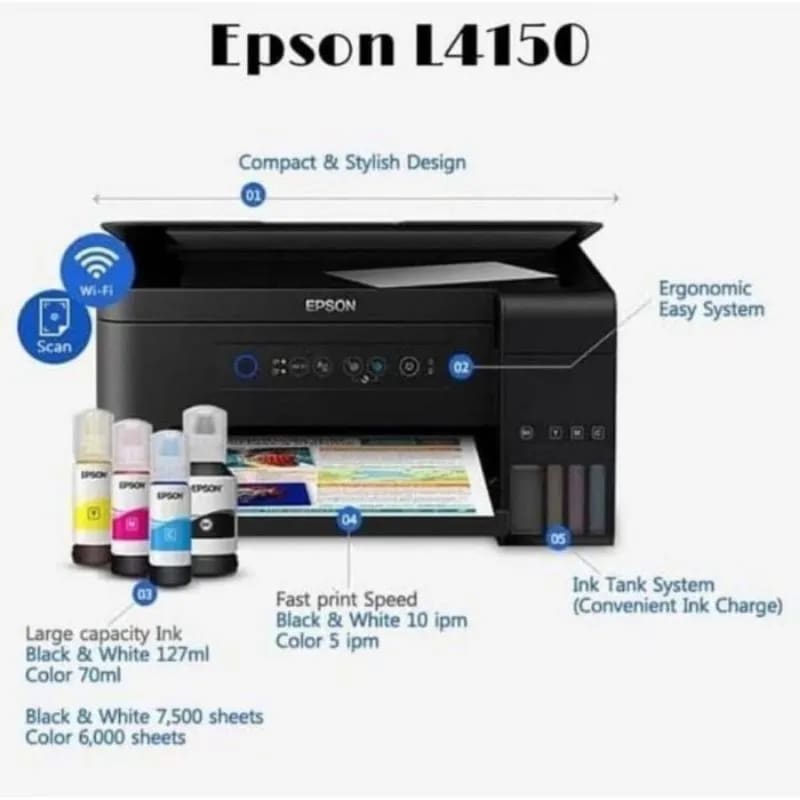 The Epson L4150 features a modern design and slim dimensions. Despite being in the affordable category, its performance is impressive — this printer can handle high-volume printing for daily document needs in both office and home environments.
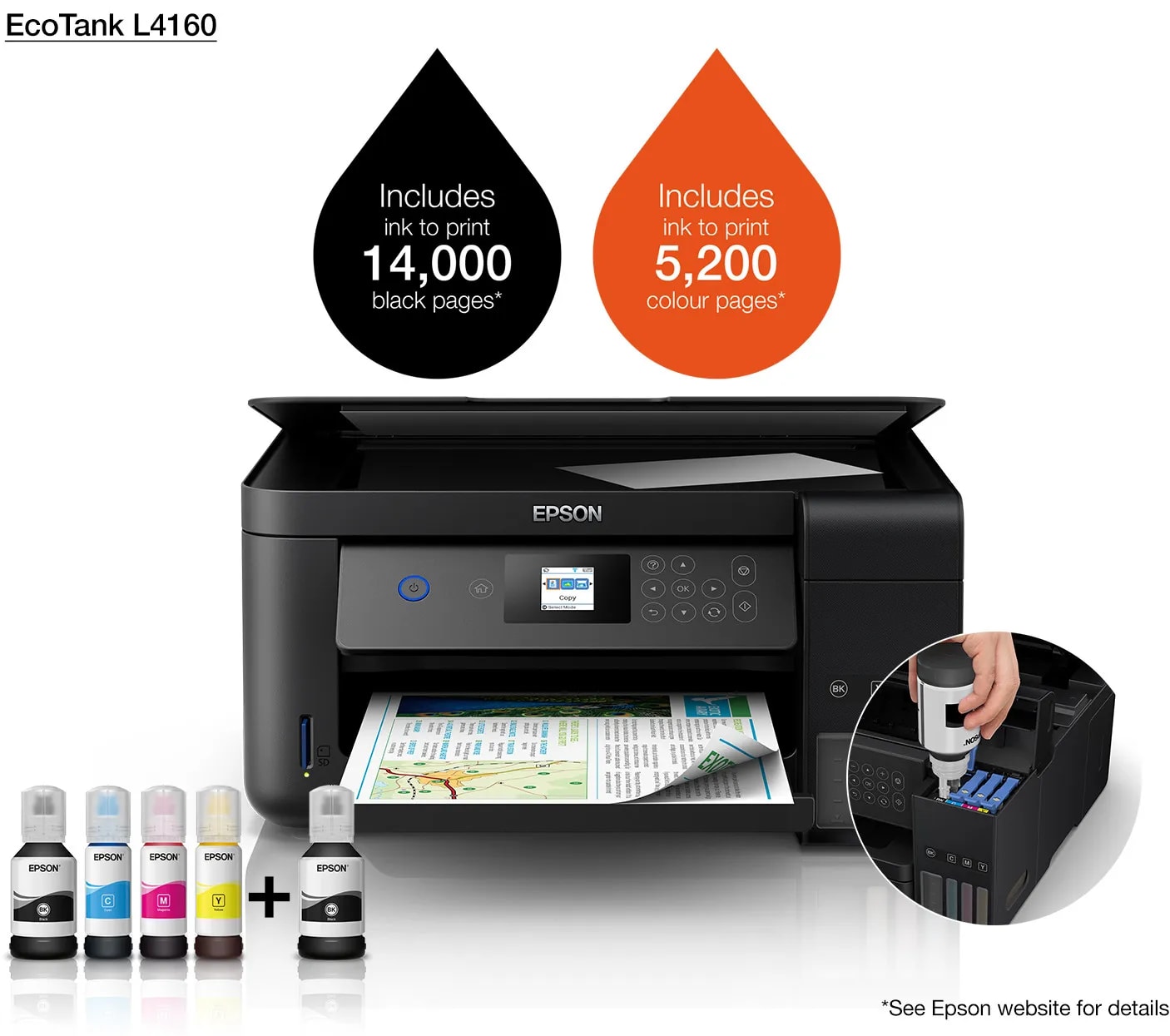 The Epson L4160 is an improved version of the L4150, with additional features and a better interface. This printer is designed more seriously for business needs, with reliability and capabilities enhanced from its predecessor.
Important before you start
Resetting the counter is not a substitute for physical service if the waste ink pad is actually full. If the printer has been used heavily or ink is leaking from the bottom, it is safer to have the waste pad checked first.
When do Epson L4150/L4160 printers need a reset?
- A Service Required message appears on the computer.
- A message says Ink pad is at the end of its service life.
- Printer indicator lights blink alternately and the printer refuses to print.
- The driver detects the printer, but every print job stops.
- The printer was working normally, then suddenly locks after long-term use.
Step 1: Download Epson L4150 & L4160 Resetter
pustaka-trik.blogspot.com
Resetter file safety note
Resetter/adjustment tools are often flagged by antivirus software because they access printer service functions. Do not run files from random sources. Keep the original archive, extract it in a dedicated folder, and re-enable security protection after the reset process is complete.
- Connect the printer directly to the laptop/PC using a USB cable.
- Make sure the printer is turned on and the Epson driver is installed.
- Close any print queue or document currently printing.
- Extract the resetter file to an easy-to-find folder.
- If Windows blocks the file, check the filename and source before running it as administrator.
Step 2: How to Reset Epson L4150 & L4160 Printer
The usual flow is:
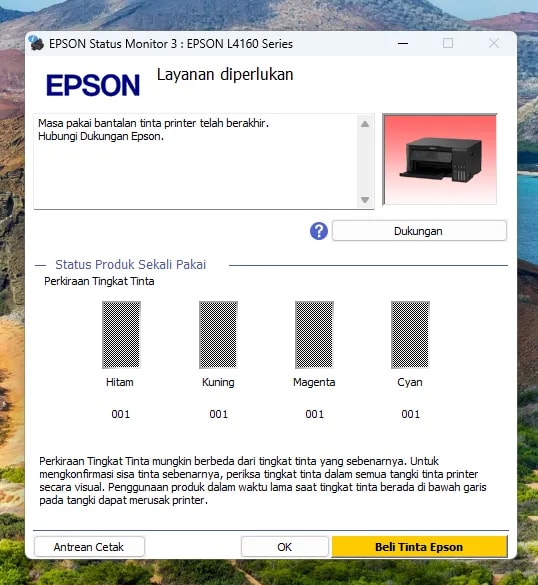
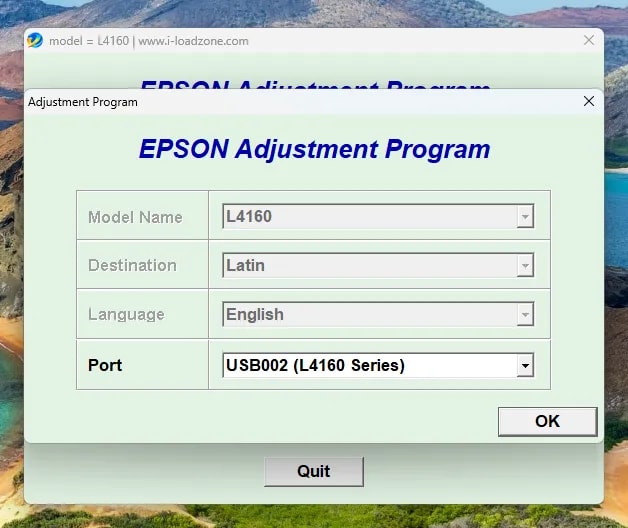
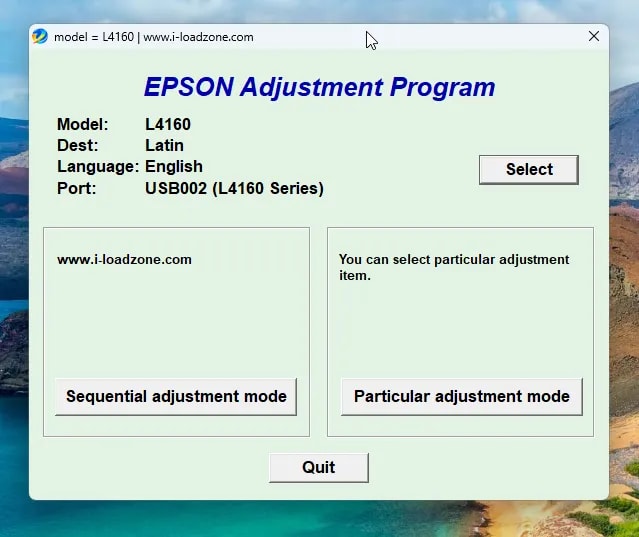
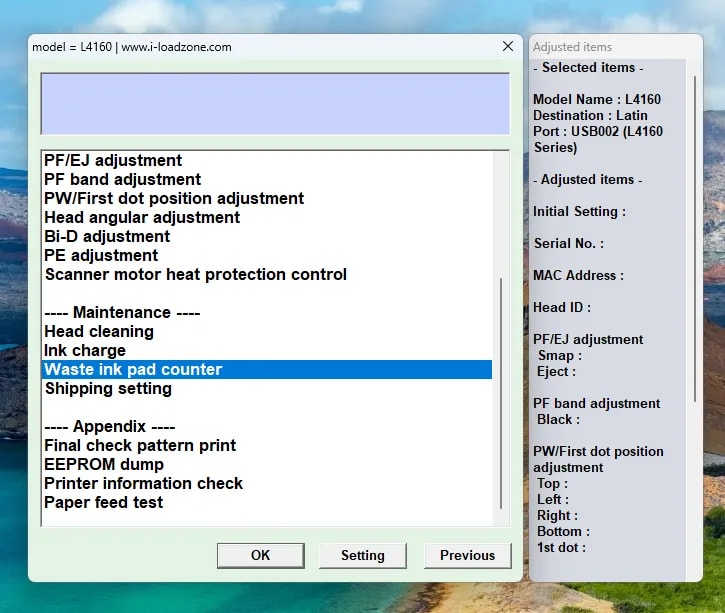
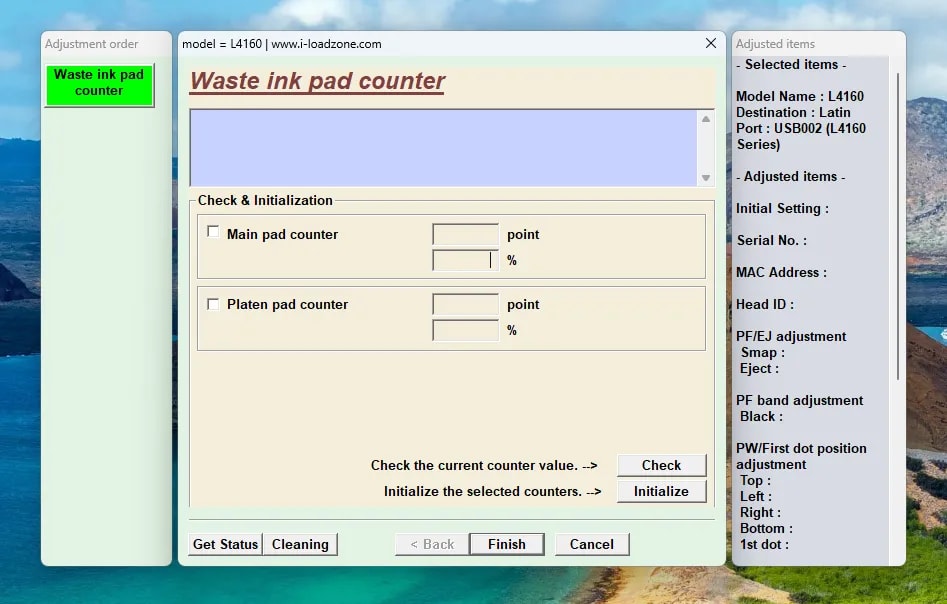
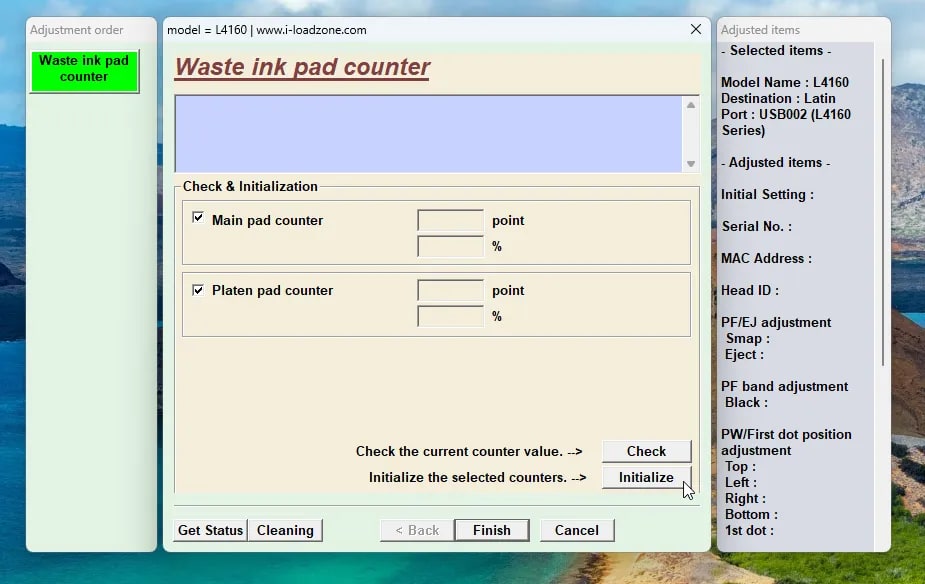
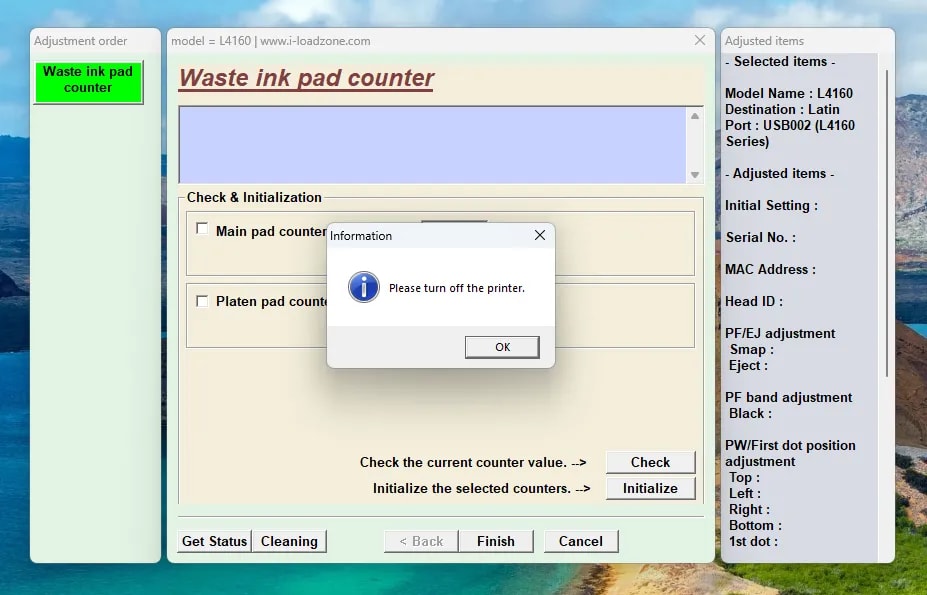
- Run the adjustment program as administrator.
- Select the correct printer model, such as Epson L4150 or Epson L4160.
- Open Particular adjustment mode.
- Choose Waste ink pad counter.
- Tick the available counter, then click Check to see the status.
- Tick the counter again, then click Initialization.
- Wait for the process to finish, then turn off the printer.
- Turn the printer back on and print a test page.
If the resetter fails or the printer still shows an error
| Symptom | Common cause | Action |
|---|---|---|
| Printer is not detected in the resetter | Driver incomplete or USB cable issue | Reinstall driver, change USB port, try another cable |
| Communication error during initialization | Printer is not ready | Restart printer and computer, then repeat the process |
| Service Required still appears | Counter was not reset or wrong model selected | Make sure the L4150/L4160 model is selected correctly |
| Ink leaks from the printer | Physical waste ink pad may be full | Do not only reset; have the waste pad checked by a technician |
| Antivirus removes the file | File is detected as riskware/service tool | Restore only if you trust the source, then re-enable antivirus afterward |
About Epson L4150 and L4160 Printers
Epson L4150
Zoom
Epson L4160
Zoom
Epson L4150/L4160 Resetter FAQ
Are Epson L4150 and L4160 resetters the same?
Not always. That is why the download links are separated by model. Use the resetter that matches your printer series so the model and counter options are correct.Is it safe to reset the ink pad counter?
It is safe if the issue is really the counter and the printer does not show signs of ink leakage. If the printer has been used heavily or ink is leaking, check the physical waste ink pad.Do I have to disable antivirus?
Not always. If antivirus blocks the file, understand the source and risk first. If you temporarily allow it, enable protection again after the process is complete.Why does Service Required still appear after reset?
Usually because the wrong model was selected, initialization did not finish, the printer was not restarted, or there is a physical issue with the waste ink pad.Does this resetter fix streaky prints?
No. Streaky prints are usually related to nozzles, head cleaning, ink flow, or paper quality. The resetter is only for ink pad/service required counters.References
Topics
Topics in this article
Explore related topics and continue reading similar content.
Share this article
Discussion
Preparing the comments area...


