How to Create a Windows 11 Bootable USB with Rufus (2026)
Iwan Efendi5 min
Create a Windows 11 bootable USB with Rufus using the right GPT, UEFI, TPM, Secure Boot, and troubleshooting settings for a clean install.
So, you're ready to perform a clean installation of Windows 11? Great choice! Using a USB installation media is the best way to get a fresh system free from manufacturer bloatware. And for this task, there's no better, lighter, or more user-friendly tool than Rufus.
This guide will walk you through the process step-by-step, from preparation to a ready-to-use USB, including the Rufus settings that matter most: GPT vs MBR, UEFI vs Legacy, Secure Boot, TPM checks, and what to do if the USB does not appear in the boot menu.
If your goal is a normal clean install on a modern laptop or PC, keep the default Windows 11 path: GPT, UEFI, and official installation media. The compatibility options are useful, but they should be used intentionally instead of being clicked blindly.
Before we begin, ensure you have the following ready to ensure a smooth process:
 Once all preparations are complete, follow these steps:
After it's finished, you can close the Rufus app. Your Windows 11 bootable flash drive is now ready to use for a clean installation on any computer that supports the UEFI system. Easy, right?
Once all preparations are complete, follow these steps:
After it's finished, you can close the Rufus app. Your Windows 11 bootable flash drive is now ready to use for a clean installation on any computer that supports the UEFI system. Easy, right?
Use this table if you are unsure which option to choose in Rufus:
For most Windows 11 installs in 2026, GPT + UEFI is the safest baseline. It matches modern hardware and avoids many boot-menu problems.
Before you assume the USB failed, check these common issues:
Use this quick checklist so installation starts on the first try:
Once Rufus shows READY, do not immediately wipe the target PC. Do these quick checks first:
If your target machine is dual-boot (for example Windows 11 + Ubuntu), avoid deleting partitions blindly during setup.
Safe approach:
#1 Key Preparation (Don't Skip!)
- USB Flash Drive: Prepare a flash drive with at least 8 GB capacity. Make sure it's in good condition.
- Windows 11 ISO File: You'll need the Windows 11 installer file in
.isoformat. Windows 11 24H2 English x64 ISOLarge (Direct link)Download - Rufus App: Download the latest version of Rufus. We've provided a safe link below. Rufus v4.91.4 MBDownload
- Backup Data: This process will erase all data on the flash drive. Ensure you have backed up any important files from that drive.
Important Warning
The steps below will fully format your flash drive. All data inside will be permanently lost. Double-check your backups before proceeding.
#2 Creating the Windows 11 Bootable Drive
Zoom
1
Open Rufus & Select Device
Run the Rufus application you downloaded. Plug in your flash drive, and Rufus will automatically detect it in the Device section.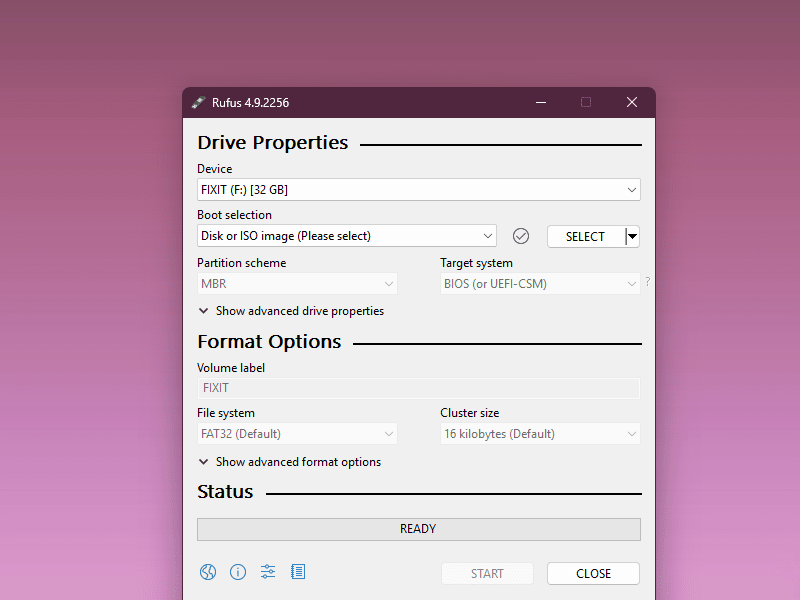 Step 1: Ensure the correct flash drive is selected.
Zoom
2
Select Windows 11 ISO File
In the Boot selection area, click the SELECT button, then find and choose the Windows 11 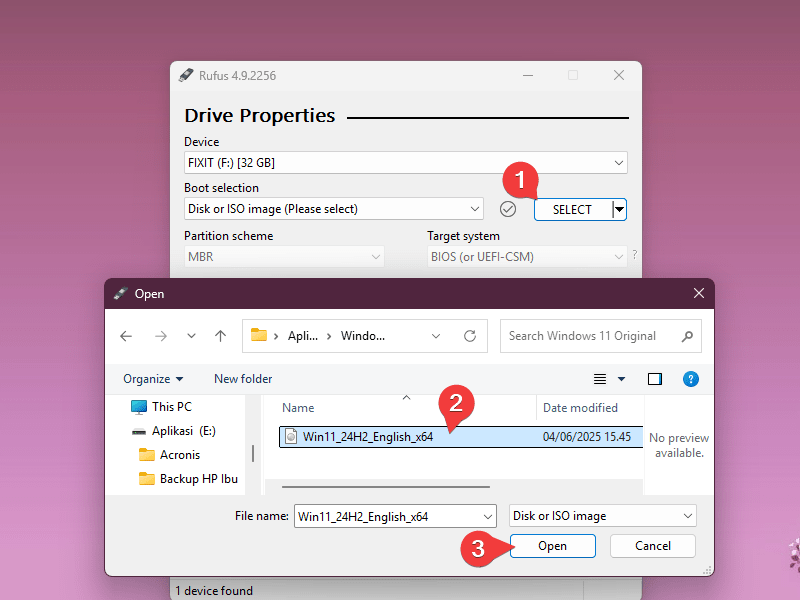 Step 2: Choosing the Windows 11 installer file.
.iso file you prepared earlier.Zoom
3
Configure Installation Options
After selecting the ISO, Rufus will automatically adjust several options. Keep the Partition scheme as GPT and Target system as UEFI, as these are the standards for Windows 11.
4
Start the Process
Once all settings are correct, click the START button at the bottom.
5
Windows Customization (Rufus Advanced Features)
A "Windows User Experience" pop-up will appear. This is where Rufus's magic happens. You can choose: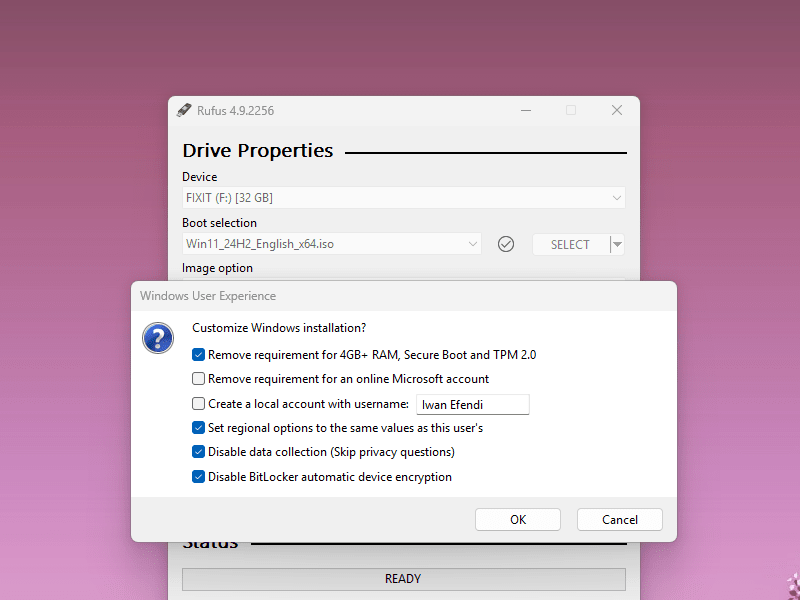 Step 5: Review each option carefully and proceed only with settings that match your installation target.Click OK when finished.
- Remove requirement for 4GB+ RAM, Secure Boot and TPM 2.0: Use this only when you fully understand the implications and for test environments where compatibility checks are necessary.
- Other options are optional, such as automatically creating a local account.
Zoom
6
Wait for Completion
Rufus will begin creating the bootable disk. This process will take a few minutes. Wait until the progress bar turns green and the status shows READY. Once the status is READY, your flash drive is good to go!
Zoom
#3 Recommended Rufus Settings for Windows 11
| Rufus option | Recommended setting | When to change it |
|---|---|---|
| Device | Your target USB drive | Change only if more than one USB is plugged in. |
| Boot selection | Windows 11 ISO | Redownload the ISO if Rufus reports it as invalid. |
| Image option | Standard Windows installation | Use other modes only if you know the target scenario. |
| Partition scheme | GPT | Use MBR only for older Legacy/CSM-only systems. |
| Target system | UEFI | Legacy BIOS is not the normal Windows 11 path. |
| File system | NTFS or Rufus default | Let Rufus decide unless your firmware has a specific limitation. |
#4 Common Mistakes (and Fast Fixes)
- USB not listed in BIOS Boot Menu Recreate the USB and make sure Partition scheme = GPT for UEFI systems.
- Boot starts but installer crashes early Redownload the ISO and verify checksum if available. Corrupted ISO files are a frequent cause.
- "This PC can't run Windows 11" appears This usually means your hardware checks are active. Use Rufus compatibility options only for test/lab scenarios where you understand the trade-offs.
- USB creation stops at a certain percentage Try another USB port (preferably USB 2.0 for stability) and avoid running heavy background disk tasks.
-
The PC boots back to the old Windows installation
Open the one-time boot menu again and choose the USB entry that starts with
UEFI:. Also check whether the USB drive is lower than the internal SSD in boot priority. - Rufus shows multiple USB devices Unplug external drives you do not want to format. Rufus will erase the selected device, so do not continue until the target USB is obvious.
#5 BIOS/UEFI Checklist Before Install
- Boot mode is set to UEFI (not Legacy/CSM).
- Your USB is prioritized in the boot menu.
- Secure Boot state matches the installation plan.
- SATA mode (AHCI/RAID) is known before setup, especially on laptops.
#6 What to Do After the USB Is Ready
- Keep the USB plugged in and restart the target PC.
- Open the boot menu key for your device, commonly F12, F9, Esc, or F8 depending on the brand.
- Choose the USB entry with the
UEFI:label. - Stop at the Windows Setup screen and confirm the installer loads normally.
- If you are doing a clean install, make sure your important files and license/account information are backed up first.
#7 Dual-Boot Safety Note (Windows + Linux)
- Identify the current Linux partitions first.
- Install Windows only to the intended partition/disk.
- Expect the bootloader to change after installation; plan to repair GRUB from Linux live USB if needed.
FAQ
Is Rufus safe for creating a Windows 11 bootable USB?
Yes, Rufus is a widely used bootable USB tool. Use the official Rufus app and a Windows ISO you trust, then double-check the selected USB device before clicking START.Should I choose GPT or MBR for Windows 11?
Choose GPT for modern Windows 11 installations. MBR is mainly for older Legacy BIOS systems, while Windows 11 is designed around UEFI-era hardware.Why does my USB not appear in the boot menu?
The most common causes are wrong partition mode, Legacy/UEFI mismatch, a bad USB port, or the boot menu showing a non-UEFI USB entry. Recreate the USB with GPT + UEFI and try another port.Can Rufus bypass TPM or Secure Boot checks?
Rufus can show compatibility options during USB creation. Use them only when you understand the trade-offs, especially on unsupported hardware or test environments.Do I need internet during Windows 11 installation?
It depends on the Windows 11 edition and setup path. Having internet available is helpful for activation, account setup, and drivers, but prepare essential drivers separately if the target PC has unusual Wi-Fi or storage hardware.Topics
Topics in this article
Explore related topics and continue reading similar content.
Share this article
Discussion
Preparing the comments area...


