What to Do After Installing Windows 11: Complete Setup Checklist
Iwan Efendi6 min
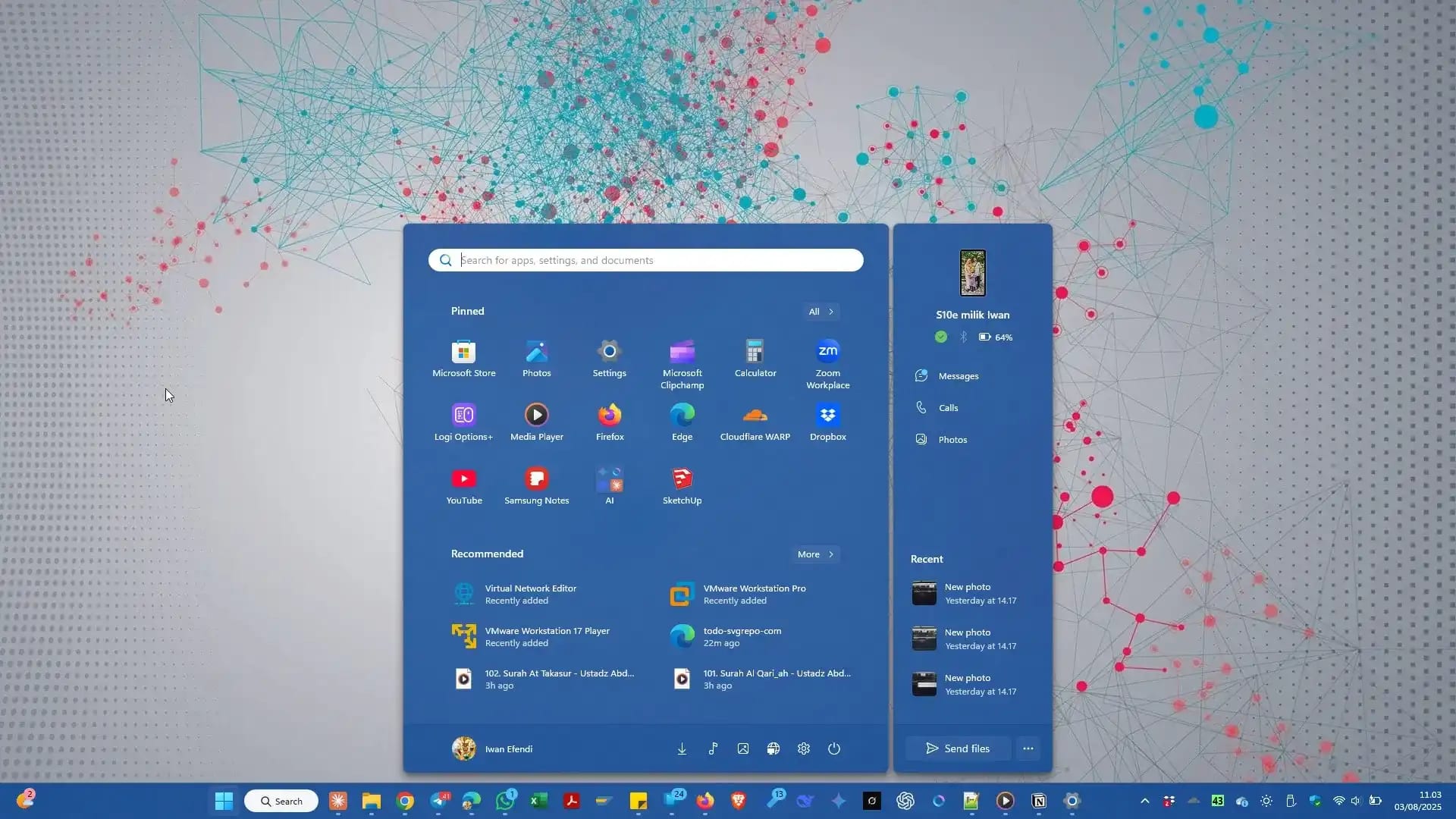
A complete post-install checklist for Windows 11, covering essential updates, must-have apps, and practical system optimization.
Congratulations, your clean install of Windows 11 is done. You now have a fast, fresh, and bloatware-free system.
But before using it for work, gaming, or content creation, there are several important setup steps you should complete first. These steps make the difference between a stable long-term system and a setup that slowly gets messy after a few weeks.
This guide covers the exact optimization flow and initial app recommendations we suggest right after a Windows 11 installation.
These are the first three steps you should never skip if you want your system to stay secure, stable, and properly configured.
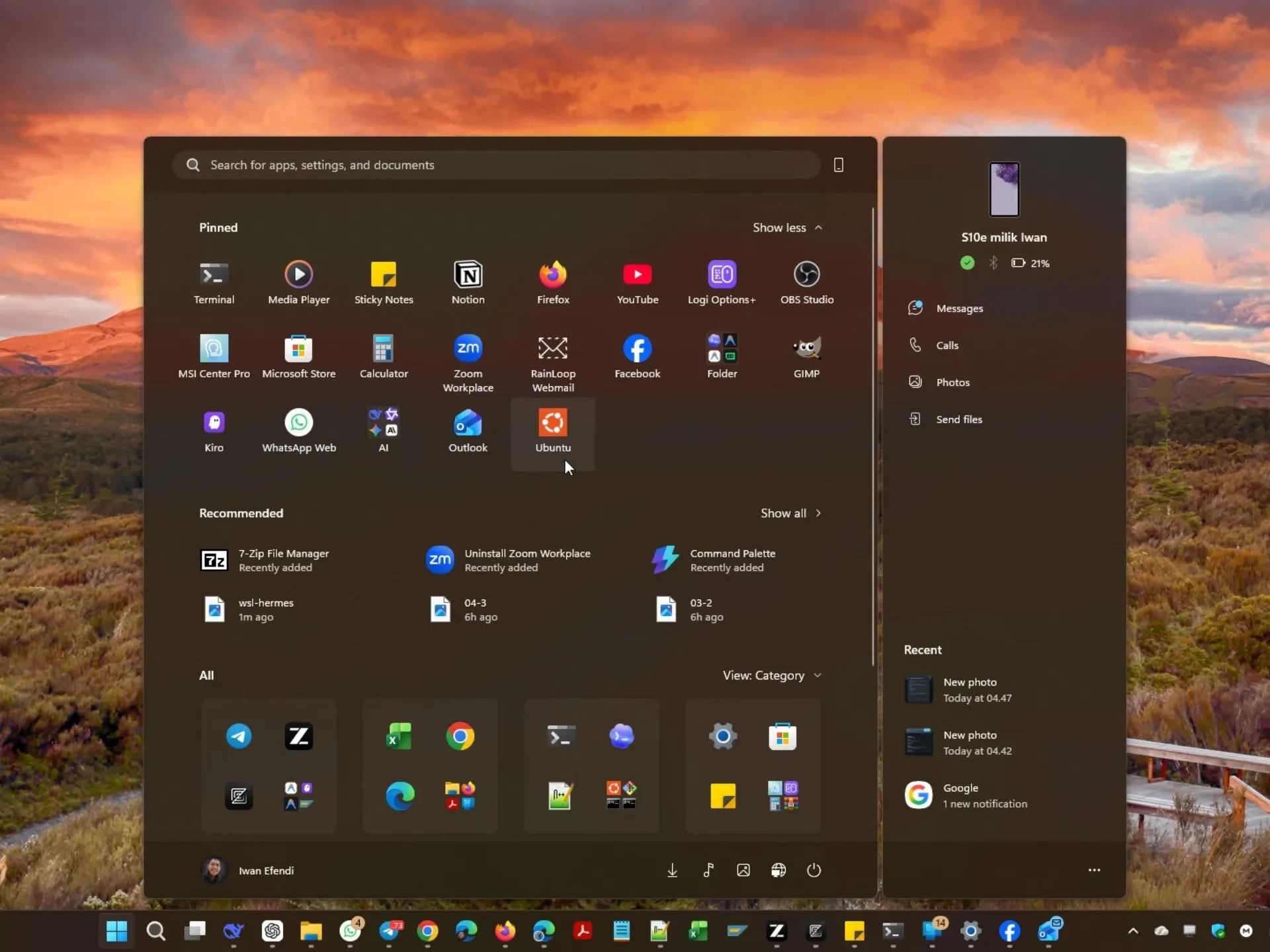
 These free and paid apps help turn a clean Windows installation into a productive daily setup.


 Activate these built-in Windows features to improve daily usability.
 These related articles cover common tasks you might run into after setup:
Prerequisite
This guide assumes your Windows 11 installation is already completed. If not, follow this guide first: Windows 11 Installation Guide: From Start to Finish.
Part 1: Crucial First Steps
#1 Check Windows and Microsoft Store Updates
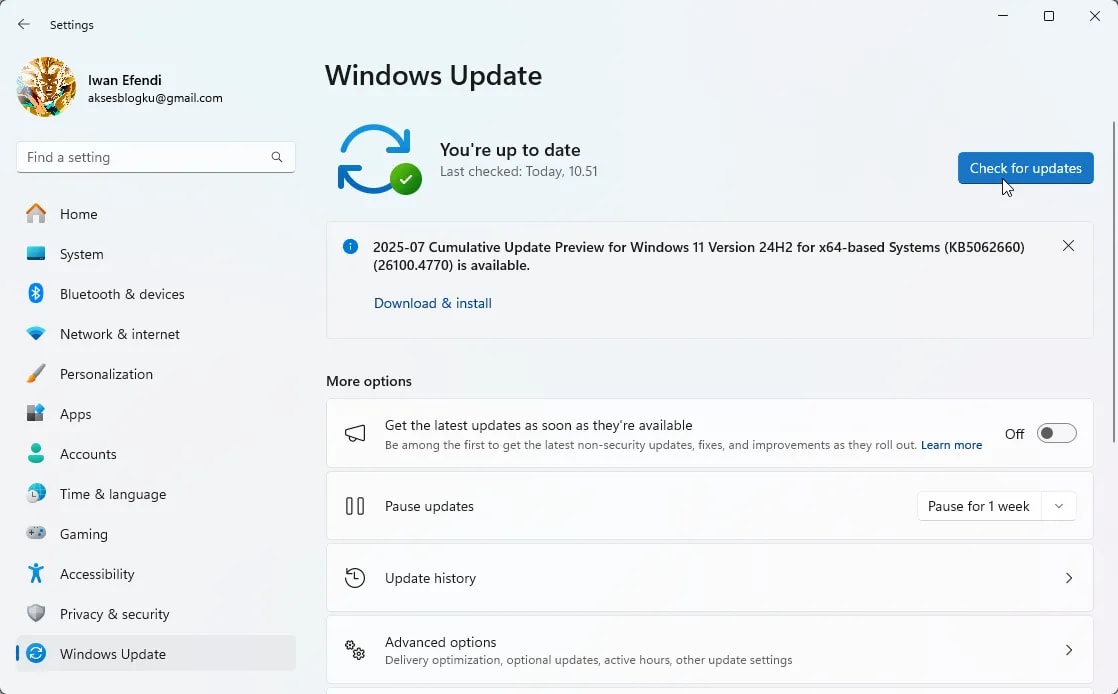
This is the most vital step because it pulls the latest security patches, bug fixes, and critical drivers.- Open Settings > Windows Update (or press Win + I).
- Click Check for updates and install all available updates.
- Open Microsoft Store, go to Library, then click Get updates to update built-in apps.
Zoom
#2 Adjust Display Resolution and Scaling
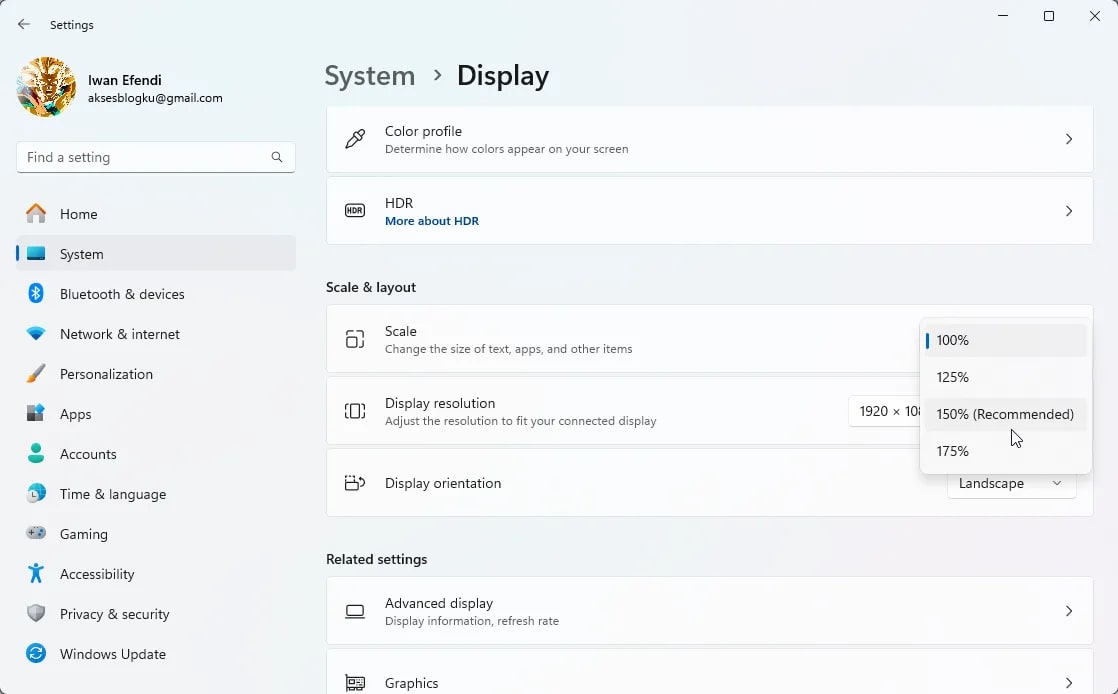
After a fresh install, Windows may not always apply the most comfortable display profile for your monitor.- Right-click Desktop > Display settings.
- Set Display resolution to the highest recommended value.
- Check Scale. If 150% feels too large, try 125% or 100%.
Zoom
#3 Set Up Automatic Dark Mode
Windows 11 still does not provide a complete built-in schedule for automatic dark mode. For eye comfort, especially at night, use a trusted third-party app.- Application: Auto Dark Mode
- Description: Automatically switches between light and dark themes based on sunrise and sunset.
- Read more & Download: Guide to Setting Up Automatic Dark Mode in Windows 11
Part 2: Recommended Essential Applications
#4 Office Suite
Choosing the right office suite is a key productivity decision. Here are the three options we recommend.Microsoft 365
Paid (Subscription)
The industry standard for productivity. Full suite with strong OneDrive integration and excellent collaboration support.
Visit Official Site
Starts from around $7/month
WPS Office
Free and Paid
A modern alternative with a familiar interface and strong compatibility with Microsoft Office formats.
Download Free Version
Pro version available without ads
LibreOffice
Free (Open Source)
A powerful open-source suite that is fully free, stable, and trusted by users who want a non-commercial alternative.
Visit Official Site
Completely free
#5 Utility and Productivity Apps
- Cloudflare WARP: Improves privacy and can improve route stability with 1.1.1.1 DNS. Download on Official Site
- ShareX: Advanced screenshot and capture tool, far beyond the default Snipping Tool. Download on Official Site
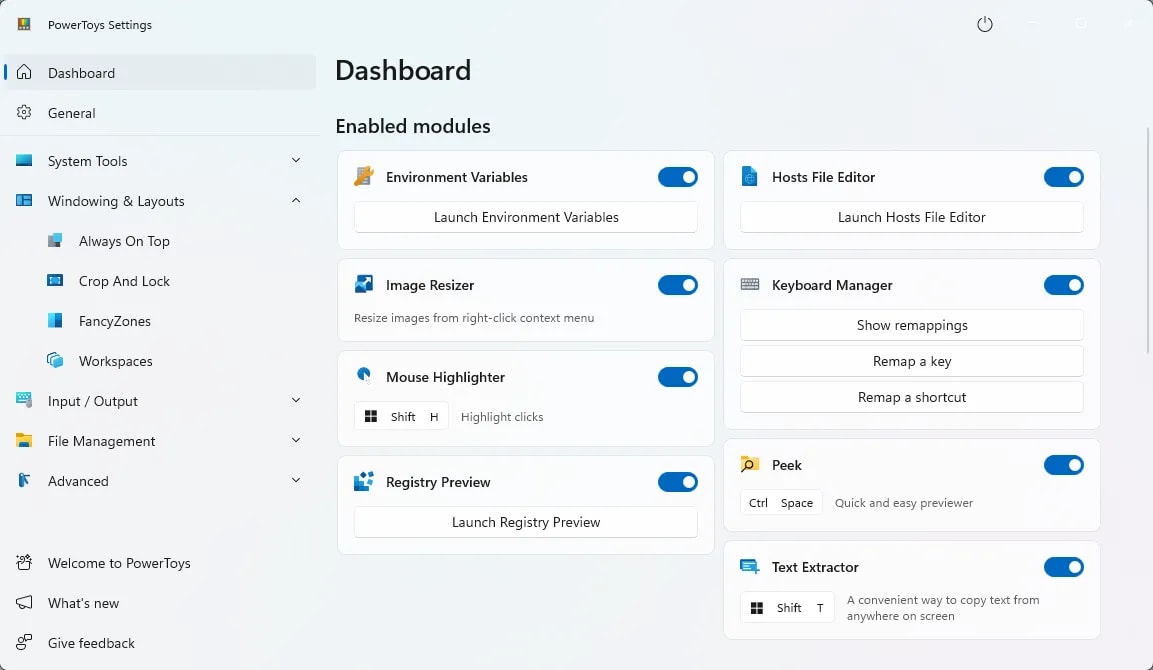
- PowerToys: A must-have Microsoft utility pack with features like FancyZones and Color Picker. Download on Microsoft Store
Zoom
- Notepad++: Lightweight but extremely capable text editor for coders and writers. Download on Official Site
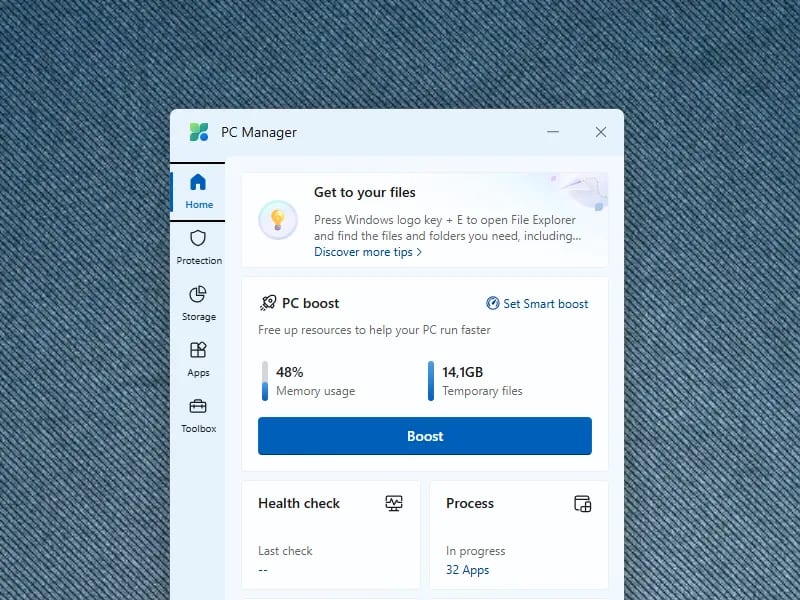
- Microsoft PC Manager: Official Microsoft cleaning and optimization tool. Download on Official Site
Zoom
#6 Multimedia and Communication Apps
- GIMP (Free): Powerful open-source alternative to Photoshop. Download on Official Site
- WhatsApp Desktop: Use WhatsApp directly on your PC. Download on Microsoft Store
- Telegram Desktop: Fast and lightweight official Telegram client. Download on Official Site
- VLC Media Player: Plays almost every video format. Download via SnipGeek
- WinRAR: Still useful for advanced archive workflows and RAR support. Also read: How to split large files into multiple parts
#7 AI and Specialty Apps
- ChatGPT Desktop App: Official app with a focused desktop experience. Download on Official Site
- MSI Center (for MSI users): Essential for tuning performance modes and vendor-specific controls. Download on Microsoft Store
Part 3: Optimize Built-in Windows Features
- Phone Link: Connect Android or iPhone to view notifications and reply to messages from your PC.
- Activate Quick End Task: Right-click taskbar > Taskbar settings > enable End task.
Zoom
- Manage Startup Apps: Open Task Manager (Ctrl + Shift + Esc), go to Startup apps, and disable unnecessary startup programs.
- Activate OneDrive: Sign in to OneDrive so important files are backed up automatically.
- Use Sticky Notes: Quick and practical for desktop notes.
More Windows 11 Guides
- Developer Setup on SILULA Laptop: Windows 11, WSL 2, and 9Router — a complete development environment configuration guide using Windows 11, WSL 2 Ubuntu 26.04 LTS, and local AI routing gateway.
- How to Share a Folder in Windows 11 via LAN and WiFi — set up network file sharing so other devices on your local network can access shared folders.
- How to Remove Duplicate OneDrive Folders in Windows 11 — if you see phantom OneDrive entries in File Explorer after a clean install or LTSC setup.
- How to Rename Your PC in Windows 11 — change the default computer name to something recognizable on your network.
- How to Connect Your Laptop to an External Monitor — extend your workspace by hooking up a second display.
Frequently Asked Questions
How long does Windows Update take after a fresh install?
It depends on your internet speed and how many cumulative updates are pending. A fresh install typically requires 2-4 restart cycles and can take 30-90 minutes. I recommend leaving it running and checking back periodically.Should I install drivers manually or let Windows Update handle them?
For most hardware, Windows Update provides adequate drivers. However, for dedicated GPUs (NVIDIA, AMD), audio interfaces, and specialty peripherals, I recommend downloading the latest drivers directly from the manufacturer's website for better performance and stability.Is it safe to disable Windows Defender after installing a third-party antivirus?
Windows Defender automatically deactivates its real-time protection when it detects a compatible third-party antivirus. You do not need to manually disable it. If you want to keep Defender as your primary antivirus, that is perfectly fine for most users — it has improved significantly in recent years.Can I skip Microsoft account login during setup?
On Windows 11 Home, Microsoft now requires an online account during initial setup. You can bypass this using methods like disconnecting from the internet during OOBE, but keep in mind that some features like OneDrive sync, Microsoft Store purchases, and device encryption rely on a Microsoft account.References
Topics
Topics in this article
Explore related topics and continue reading similar content.
Share this article
Discussion
Preparing the comments area...